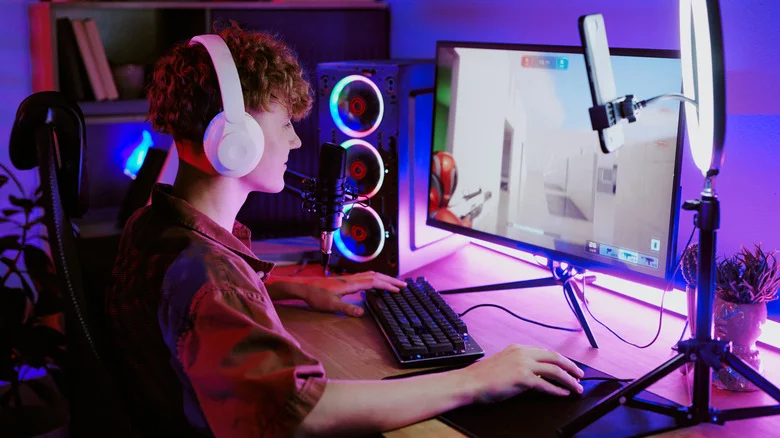
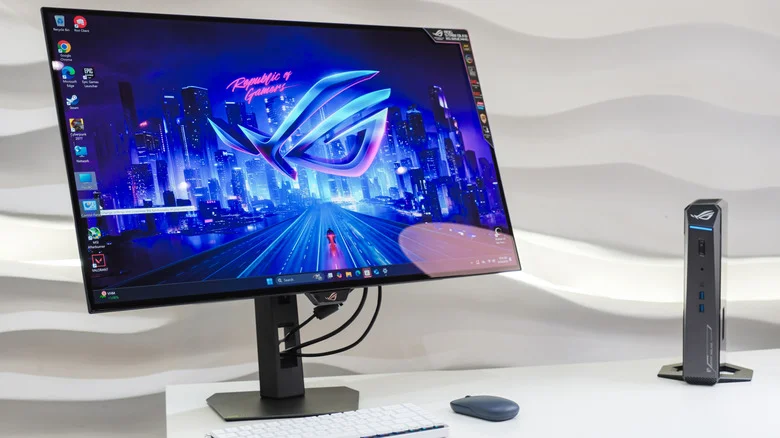
Match resolution and refresh rate to your system’s actual performance, then weigh screen size, panel type, HDR, ports, and variable refresh support.
Start with the games and hardware you already have
The best gaming monitor is the one your system can make good use of. That sounds obvious, but it’s easy to overspend on a headline spec—especially refresh rate—without checking what your PC can actually deliver.
A GeForce RTX 5080 or 5090 can make a strong case for a 4K display with a very high refresh rate. An older or less powerful GPU may struggle to feed one. If your games rarely run above about 90 frames per second, a 240Hz monitor is unlikely to earn its price. Competitive games such as *Valorant* often reward higher frame rates more than extra pixels; a visually rich title such as *Control: Resonant* may make the reverse trade worthwhile. You can also choose a middle ground.
Once you’ve settled on a realistic resolution and refresh rate, weigh panel type, HDR and brightness, ports, and variable refresh rate support such as G-Sync. Resolution also matters beyond gaming: 1440p or 4K can be useful for video and photo editing, or watching films. At the same resolution, a smaller screen packs pixels more tightly, producing a sharper image measured in pixels per inch (PPI).
Size is partly about how you play. Esports players often choose monitors around 24 inches to keep the action in view, while players drawn to immersive single-player games may prefer 27 inches or larger. Bigger screens can also make multitasking easier, though you’ll want more distance between you and the display. A 16:9 screen remains the standard for games. Ultrawide models can fill more of your peripheral vision, but their width may push important HUD information toward the edge of your sight. Squatter screens can suit productivity work better.
Refresh rate only helps when your system can reach it
Refresh rate gets plenty of attention, and for good reason: it should be one of your first decisions. But the GPU sets the practical ceiling. Displays now ship with modes reaching up to1,000 Hz at lower resolutions. Whether you could see the difference—or drive those frame rates—is another question.
The Steam Hardware Survey showed that the average PC gamer in September 2026 used an RTX 5070, 5060, 4060, or even a 3060. For that broad group, a 1080p or 1440p screen in the 144Hz-to-240Hz range is a plausible target. Lightweight competitive games can justify pairing 1080p with a faster panel. With an RTX 5080 or 5090, you have more room to consider 1440p or 4K at a range of refresh rates.
Check your own performance before shopping. Steam, NVIDIA, and Xbox overlays can show frame rates while you play; 3DMark and built-in tests in games such as *Cyberpunk 2077* can provide another measure. Try several games that reflect what you usually play and note the highest rates you see. If you’re not planning a GPU upgrade in the next few years, paying for a refresh rate your system can’t reach is hard to justify.
Console buyers face a lower ceiling. Even the PlayStation 5 Pro and Xbox Series X top out at 120Hz, so a larger screen or higher resolution may be a better use of the budget than a panel built for speeds the console won’t produce.
OLED brings vivid contrast, with trade-offs
After choosing your resolution, size, and refresh rate, panel technology becomes the big decision. For gaming, OLED and Fast IPS are strong contenders, but they suit different rooms, budgets, and habits.
OLED pixels emit their own light. A pixel displaying black can switch off entirely, giving OLED its near-infinite contrast, accurate color, and very fast response. Those traits make the technology especially appealing for HDR games. The catch is that static images left on screen for long periods can cause OLED burn-in, leaving a persistent image behind. Newer models use pixel shifting and cleaning cycles to spread wear across the panel. Still, if you routinely leave your monitor on when you step away, OLED asks you to change that habit.
OLED also tends to be dimmer than LCD, which can make it a poor fit for a bright room. Matte coatings help on some models, but OLED usually looks best in dimmer conditions. Text fringing and motion flicker remain considerations, even though recent generations have reduced both. Anyone who uses a gaming PC for spreadsheets and documents should factor them in, along with the price: entry-level OLED monitors started around $400 in late 2026. If OLED fits your needs, sales are worth watching.
Fast IPS is the more flexible pick. IPS panels offer vivid colors, wide viewing angles, and consistent performance; the “Fast” versions reduce the motion blur associated with regular IPS. They don’t deliver OLED’s contrast, but they’re an easy recommendation for bright rooms, mixed work and play, or tighter budgets.
VRR smooths out uneven frame delivery
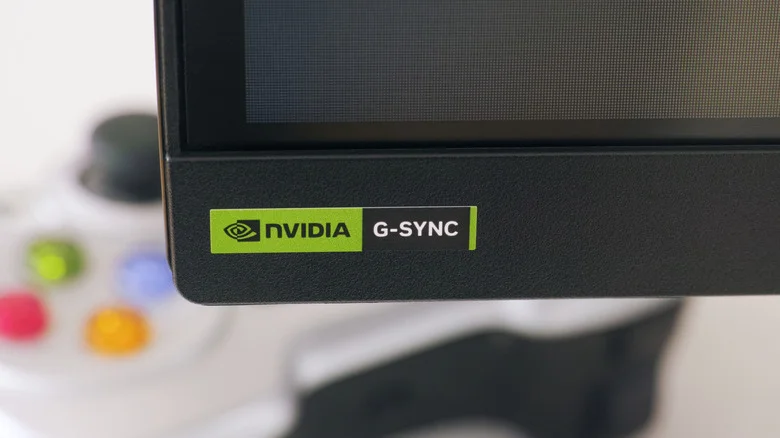
When a graphics card sends frames at a different pace from the monitor’s refresh cycle, the screen can show pieces of two frames at once. That’s screen tearing, and it can make a game look badly broken. Variable refresh rate (VRR) helps by matching the display’s refresh to the GPU’s output. The familiar versions are NVIDIA G-Sync, AMD FreeSync, and Adaptive Sync. For more on the problem and its fixes, see our guide to screen tearing and how to fix it.
For most PC buyers, G-Sync or FreeSync support should be easy to find without a large added cost. Some G-Sync monitors contain a dedicated NVIDIA module, which can raise the price, but NVIDIA also certifies models as G-Sync Compatible without that hardware. Many FreeSync displays carry that compatibility.
Console support depends on the system. Xbox Series X and Series S support FreeSync through their AMD hardware. PlayStation 5 and PS5 Pro use HDMI 2.1 VRR instead, while consoles don’t use NVIDIA GPUs and have no need for G-Sync.
The cable matters, too. VRR requires a compatible connection: DisplayPort 1.2a or later is a baseline, while some HDMI 1.4 and 2.0 setups support it. HDMI 2.1 and later offer the strongest support.