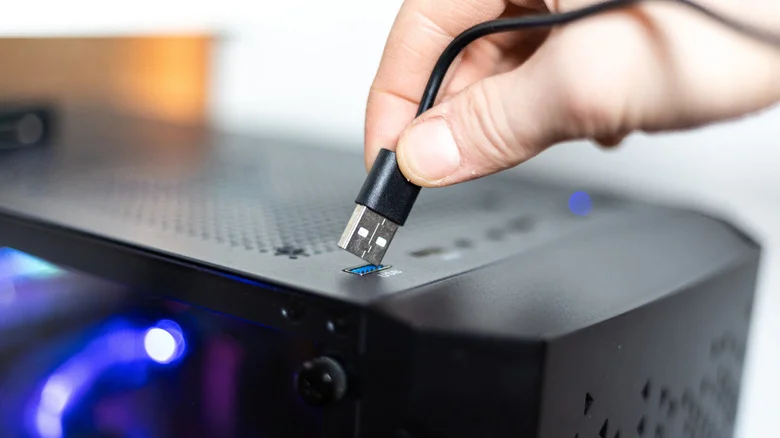
Port placement can shape how well a desktop handles storage, charging and other connected gear. Front USB ports make everyday plug-ins easy, but their speed and power can lag behind rear connections, depending on the computer’s design. That difference can be easy to miss: the connector may look familiar, and a device may still work, even when the connection puts a ceiling on its performance.
The trade-off is practical. A port on the front is easier to reach, especially for gear you connect and disconnect often; a rear port is usually less convenient but may offer a faster standard or a stronger power profile. Neither position tells the whole story, though. If you're choosing where to plug something in, the port’s specifications matter more than its location.
When port speed becomes noticeable
The difference often matters most when you connect a fast external drive or another device that moves a lot of data. A mouse, keyboard or headphones are unlikely to show any downside because their ordinary tasks don’t demand much bandwidth. A storage drive, by contrast, can spend much of its use moving large files, making a slower connection more apparent.
That gap may show up as longer transfers or less responsive performance in workflows that depend on quick access to data. It doesn’t mean every external drive will run at its advertised maximum: the drive, cable, computer and port all affect the result. Here’s the thing: the ports’ location is only a rough clue. Checking the computer or motherboard specifications will tell you what each connection can actually deliver.
Why front ports can have lower limits
Rear USB ports are typically mounted directly on the motherboard. Front ports need a cable connection from the case to a motherboard header, adding distance and another link along the data path. That can contribute to signal loss, though the practical impact depends on the hardware. The cable and header are part of the connection, so a front port’s performance depends on how the case and motherboard are designed together.
Port standards and shared connections matter, too. A motherboard may provide several fast rear ports but route multiple front ports through a shared header. Devices using those ports can then share available bandwidth and power. In practice, this means that plugging in a second demanding device could affect the capacity available to the first, depending on the system’s internal layout.
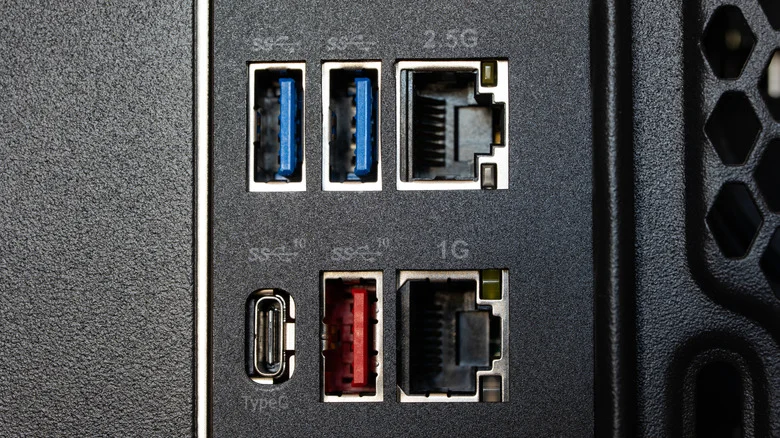
Some systems also equip the front panel with slower USB standards than those available at the back. A USB-C connector’s shape, for example, doesn’t by itself tell you its data rate or charging capability. The same applies to USB-A: the connector can look identical while the supported standard differs. This is more significant than it looks when a desktop has a mix of ports and the fastest ones aren’t the easiest to reach.
The ASUS ROG Maximus Z790 Hero illustrates the range. Its rear panel includes two 40 Gbps Thunderbolt 4 ports, six 10 Gbps USB 3.2 Gen 2 ports and four 5 Gbps USB 3.2 Gen 1 ports. On the front, it offers one 20 Gbps USB 3.2 Gen 2x2 port and four 5 Gbps USB 3.2 Gen 1 ports, connected through two headers. With some motherboard layouts, two external SSDs plugged into the front may share a 5 Gbps connection.
Those specifications show why “front versus back” isn’t a complete diagnosis. This board has a fast front connection, while some rear ports have lower listed speeds; the important detail is which standard each port supports and whether devices share a path. If you're working in this space, a port map can save time when troubleshooting slow transfers. It also helps separate a device problem from a connection that simply has a lower ceiling.
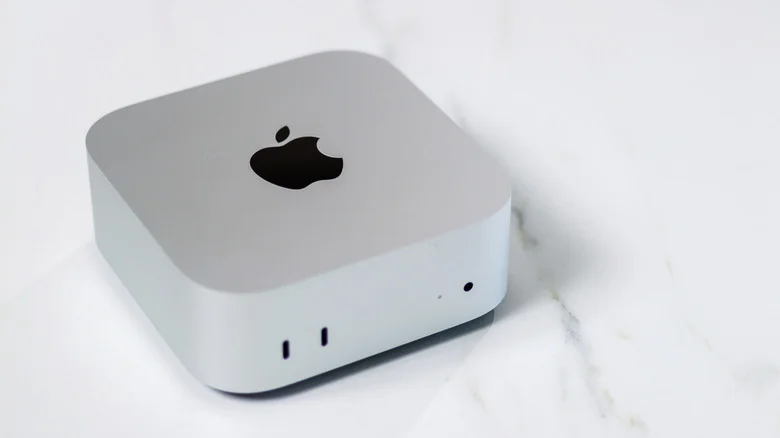
Apple’s desktop computers show a similar split. The baseline Mac mini with an M6 chip has two front USB-C ports rated up to 10 Gbps, while its rear Thunderbolt 4 ports reach up to 40 Gbps. The base Mac Studio also puts two 10 Gbps USB-C ports on the front and Thunderbolt connections on the back. Front placement, then, doesn’t guarantee a particular speed; the specifications do.
Match the port to the device
Front ports are a sensible home for low-bandwidth accessories: keyboards, mice and headphones need little power or throughput. A USB flash drive also works well there for occasional transfers or modest files. Convenience counts; for these devices, reaching around to the back of a desktop is often more trouble than any speed difference is worth.
For external SSDs, capture cards and VR headsets, rear high-speed ports are usually the better choice. The extra bandwidth can speed up transfers, and some devices may not work properly on slower connections. A headset or capture device can depend on a steady stream of data, so a connection that is adequate for a keyboard may fall short for sustained work. Check the computer’s port specifications before connecting demanding gear. Port colors and symbols can offer clues, but they’re not consistent across manufacturers.
Power is another reason to check the details, particularly when a device needs to charge or draw more than a small accessory. USB ports can differ in the power they provide, just as they differ in data speed. A device may connect successfully yet charge slowly, or rely on an external power source. The specifications help set expectations before you assume the device or cable is faulty.
What this means for your setup
The practical rule is simple: use front connections for convenience, then reserve the fastest suitable rear ports for devices that depend on throughput. A quick look at the specifications can prevent a fast drive or headset from being limited by the connection it’s plugged into. And if performance seems unexpectedly low, moving the device to a different port is a quick way to check whether the connection is part of the problem.
That said, you don’t need to treat every front port as a bottleneck. Many everyday accessories won’t benefit from a faster connection, and some desktops provide high-speed ports on the front. The useful habit is to match the port to the job, paying attention to speed, power and shared connections. A little checking up front can spare you from mistaking a port limitation for a failing device. A small detail, with a noticeable payoff.