The TCL 27C2A Pro makes a stronger case for Mini LED than its spec sheet alone suggests: it pairs unusually high brightness with 2,304 local dimming zones, broad color coverage and two refresh-rate modes. That combination matters if you want LCD-level highlights and speed in a market where many premium gaming displays now use OLED. TCL is better known for large TVs sold through big-box retailers, but its gaming monitors have also built a reputation for delivering a lot for the money. Mini LED can produce some of the brightest images among the best gaming monitors, with HDR highlights reaching 2,000 nits or more.
TCL rates this 27-inch display for 2,000 nits in a small HDR highlight and 600 nits across a full screen; my SDR measurements came close to 650 nits. Its Quantum Dot layer covers more than 100% of DCI-P3, and its color presets include several standards aimed at photo and graphics work. For games, it can run at 160 Hz in 4K or 320 Hz in FHD resolution. Adaptive-Sync, overdrive and backlight strobing round out the motion controls. At $600 at the time of writing, it’s an ambitious package. The question is whether its performance—and its physical design—live up to it.
TCL 27C2A Pro Specifications
Panel type / backlight | Quantum Dot IPS / Mini LED |
2,304 dimming zones | |
Screen size / aspect ratio | 27 inches / 16:9 |
Maximum resolution and refresh rate | 3840x2160 @ 160 Hz |
1920x1080 @ 320 Hz | |
FreeSync and G-Sync Compatible | |
Native color depth and gamut | 10-bit (8-bit+FRC) / DCI-P3+ |
Response time (GTG) | 0.2ms |
Brightness (manufacturer rating) | 600 nits full field |
2,000 nits 3% window | |
Contrast (manufacturer rating) | 1,000:1 |
Speakers | 2x 5w |
Video inputs | 1x DisplayPort 1.4 |
2x HDMI 2.1, 1x Type C | |
Audio | 3.5mm headphone output |
USB 3.0 | 1x upstream, 2x downstream |
Power consumption | 36.1w, brightness @ 200 nits |
Panel dimensions | 24.2 x 15.7-20.5 x 9 inches (615 x 399-521 x 229mm) |
Panel thickness | 3.27 inches (83mm) |
Bezel width | Top/sides: 0.35 inch (9mm) |
Bottom: 0.59 inches (15mm) | |
Weight | 14.6 pounds (6.64kg) |
Warranty | 3 years |
TCL’s HFS Shoot panel is an IPS design paired with Mini LED backlighting and Quantum Dot color. At 3840x2160, the 27-inch screen packs 163 pixels per inch. You’d need to move to 5K or higher for a finer image, and those monitors remain scarce and expensive.
The brightness claims held up in testing. With local dimming disabled, a full-screen white pattern measured nearly 650 nits in SDR. In HDR, a 25% window reached almost 1,700 nits with dimming set to High. At that setting, black levels fell below what I could measure. The 2,304 zones help control the halos that are more obvious on displays with only a few hundred zones, though local dimming can’t make an LCD behave exactly like OLED.
Color is another strength. The Quantum Dot layer covers just over 100% of DCI-P3, and the monitor includes accurate presets for DCI-P3, sRGB, Rec.709 and Adobe RGB. Adobe RGB support is unusual on a gaming monitor. The presets deliver excellent accuracy with little need for calibration, and HDR mode also lets you adjust grayscale tracking and brightness.
For fast play, the display switches between 160 Hz at 4K and 320 Hz at FHD. It includes Adaptive-Sync, overdrive and MPRT backlight strobing, and unusually, all three can run together. That flexibility gives you room to tune motion handling to the game and frame rate.
The styling is distinctive: the stand and rear housing are white, with two large lighting shapes on the back that support multiple colors and effects. Gaming overlays include reticles, timers and a frame-rate counter. Connectivity covers HDMI 2.1, DisplayPort 1.4, USB-C and USB ports for peripherals.
Assembly and Accessories
The monitor arrives in three main pieces—the base, upright and panel—packed in crumbly foam. They fit together without tools. Remove the snap-on fulcrum to access the 100mm VESA mount; TCL includes the required fasteners if you plan to use a monitor arm. The power supply is an external brick, and the box includes DisplayPort, HDMI, USB-A/B and USB-C cables.
Product 360
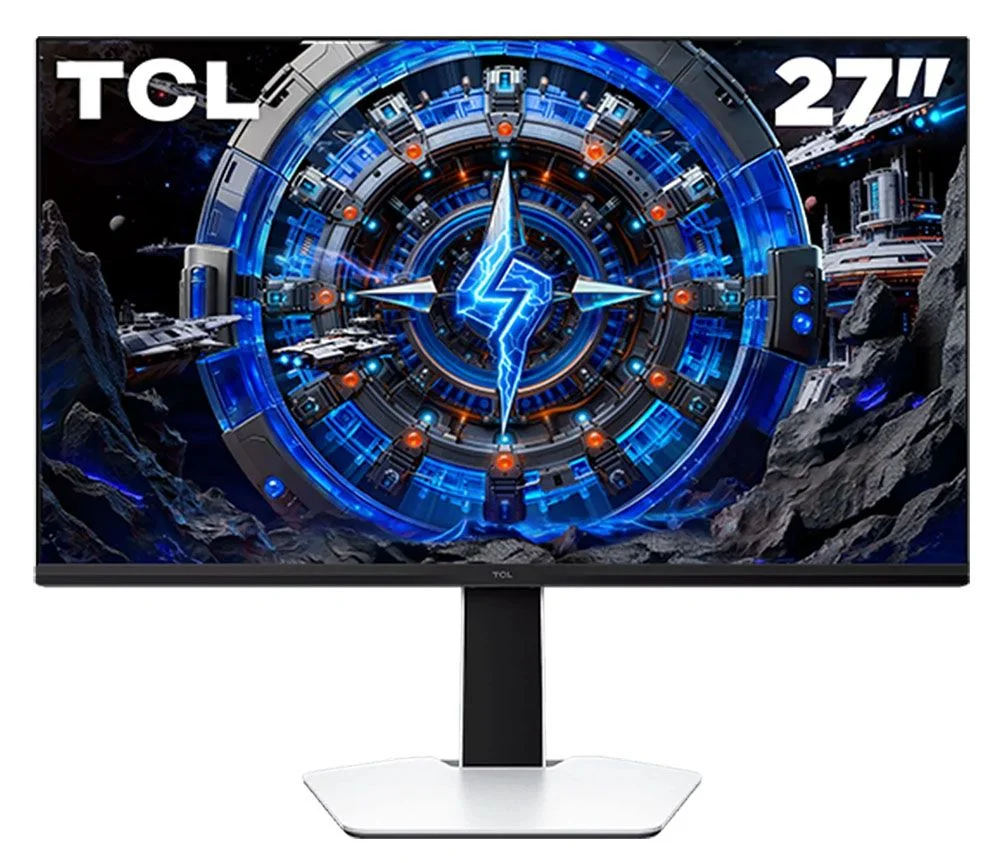
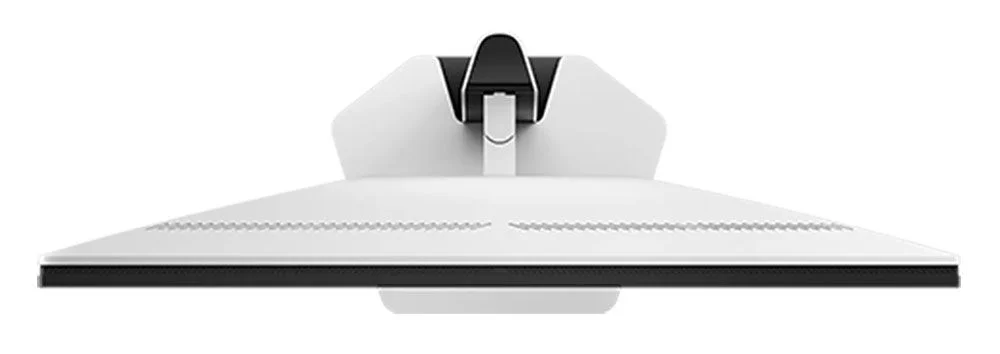
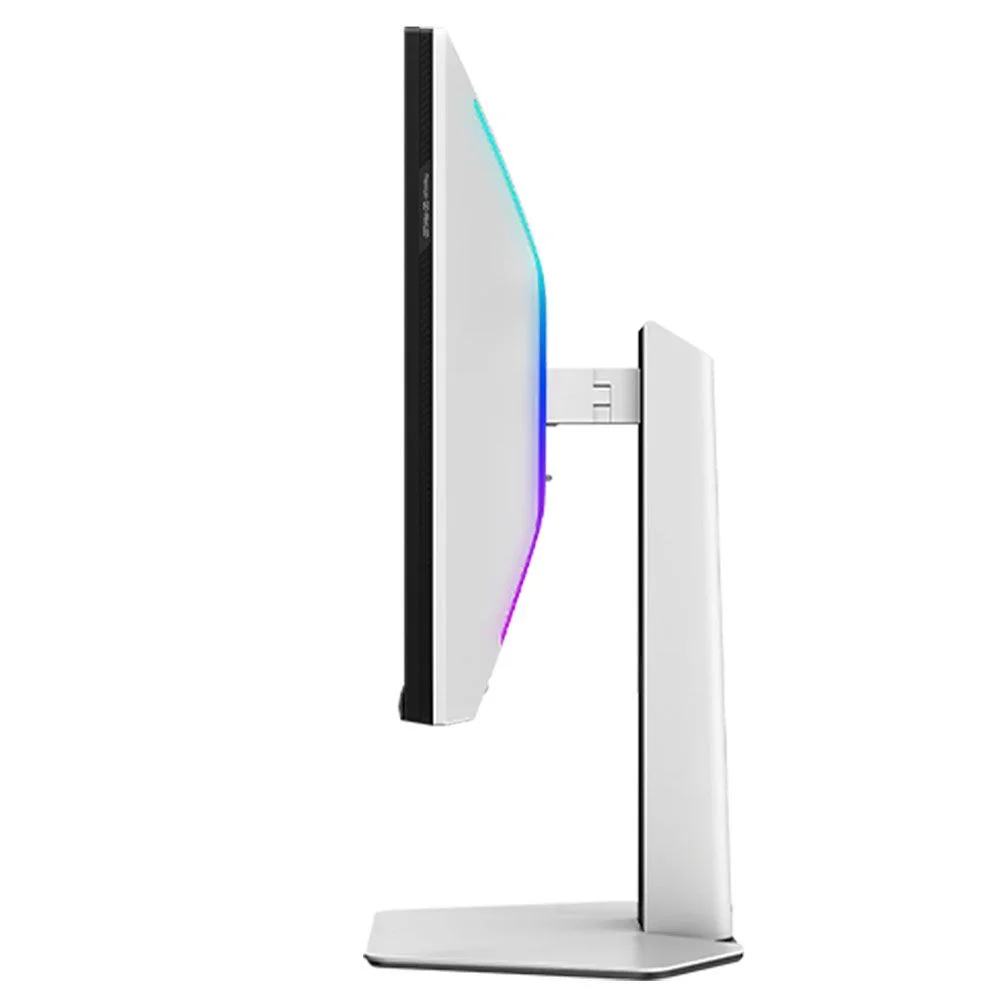
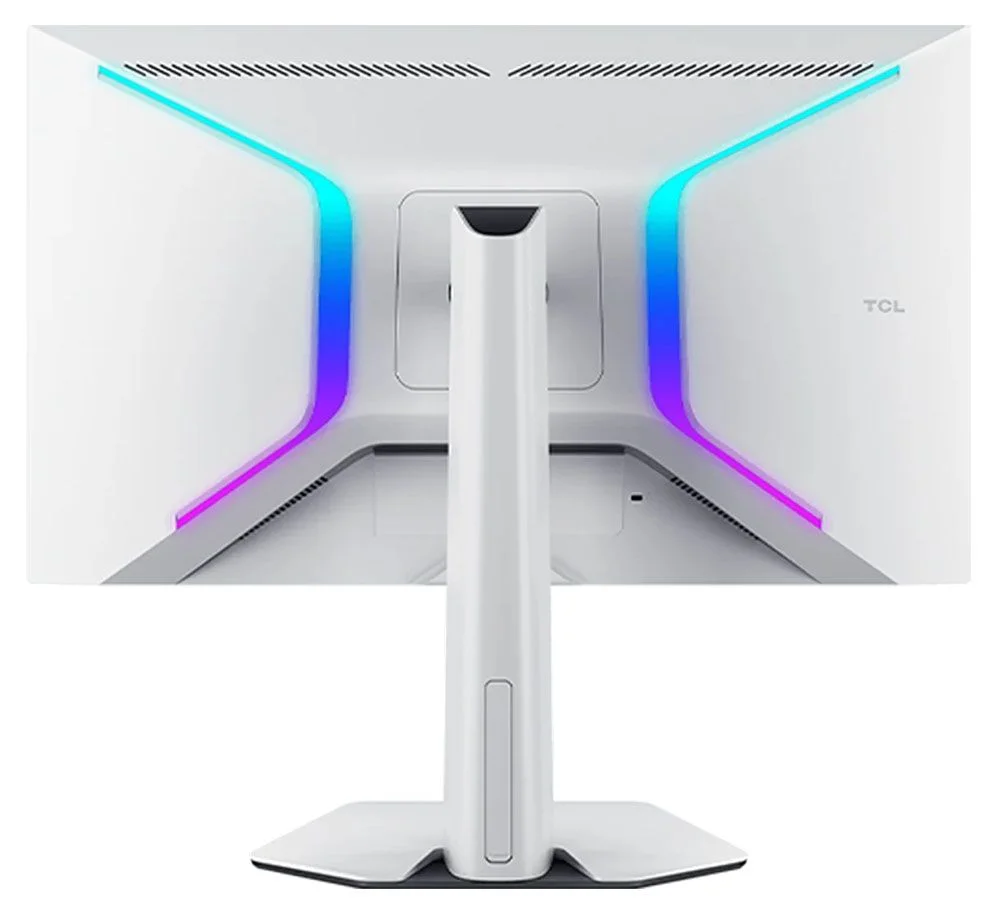
The white finish largely disappears from view when you’re seated in front of the screen: the face is black, apart from the base. That’s a sensible choice for a display you might use in a dim room. The rear and stand carry most of the white plastic.
Across the back, ventilation runs along the top, while two angular LED banks resemble reversed parentheses. The bezels sit flush with the panel: 9mm along the top and sides, and 15mm at the bottom, where a small TCL logo is the only visible marking. A backlit joystick sits beneath the center of the screen.
The stand adjusts for tilt, swivel and portrait orientation: tilt runs from 5 to 15 degrees, swivel reaches 20 degrees, and the screen rotates 90 degrees. Height adjustment spans 4.8 inches. The weak point is the panel’s small, wobbly attachment to the stand. The base and upright feel firm, but the screen jiggles when you reposition it—and can shake if you type or play aggressively at the desk.
The centered I/O panel includes one DisplayPort 1.4, two HDMI 2.1 ports and USB-C with 90 watts of power delivery. There’s also one USB 3.0 upstream port and two downstream ports, a pair of 5-watt speakers and a 3.5mm headphone jack.
On-Screen Display Features
At 4K, the OSD text is tiny enough that I had to lean in to read it; the FHD mode makes it larger. Press the joystick, then click left to open the menu.
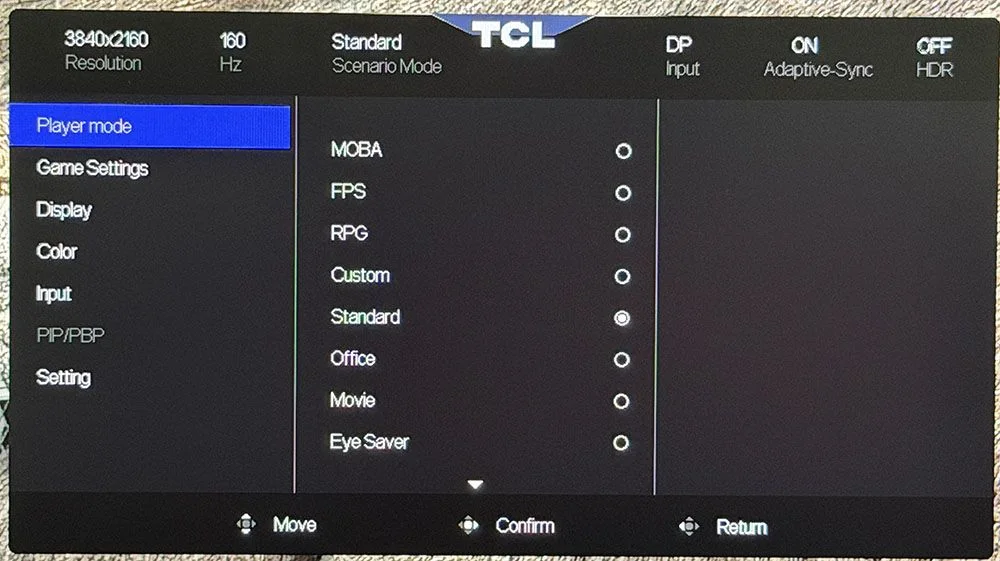
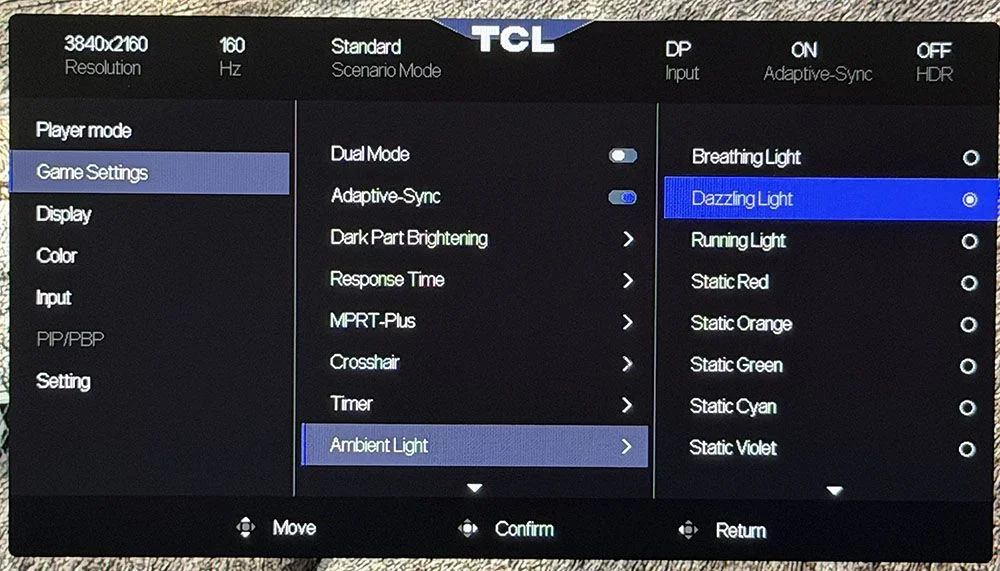
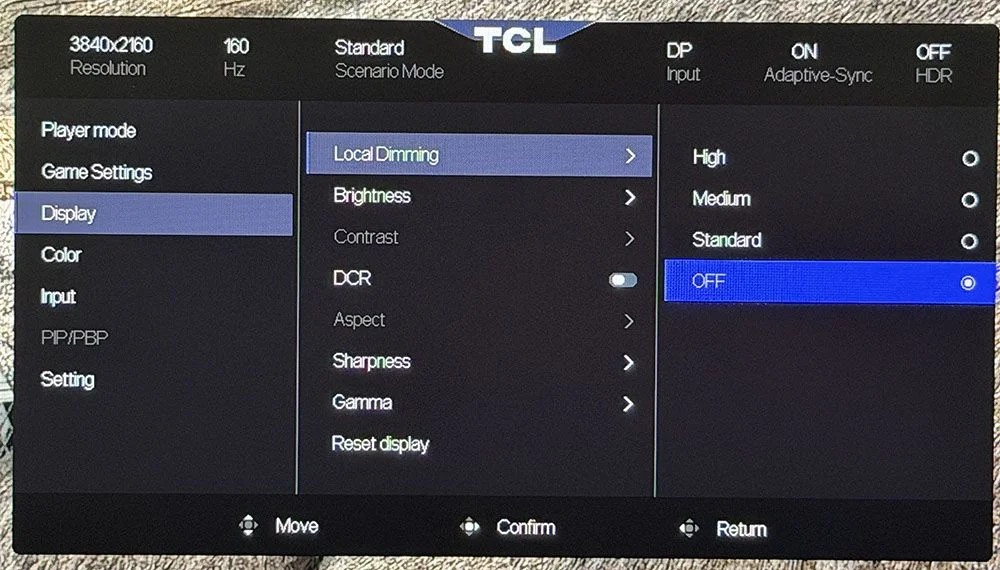
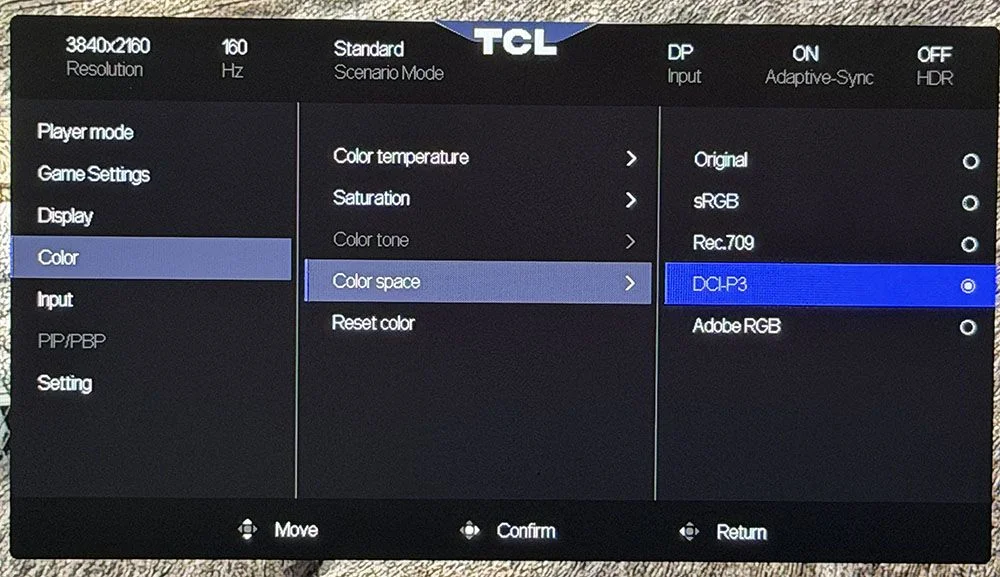
The Player menu contains nine picture modes. Standard is the one to use, provided you also choose a suitable color space; the default combination isn’t the most accurate.
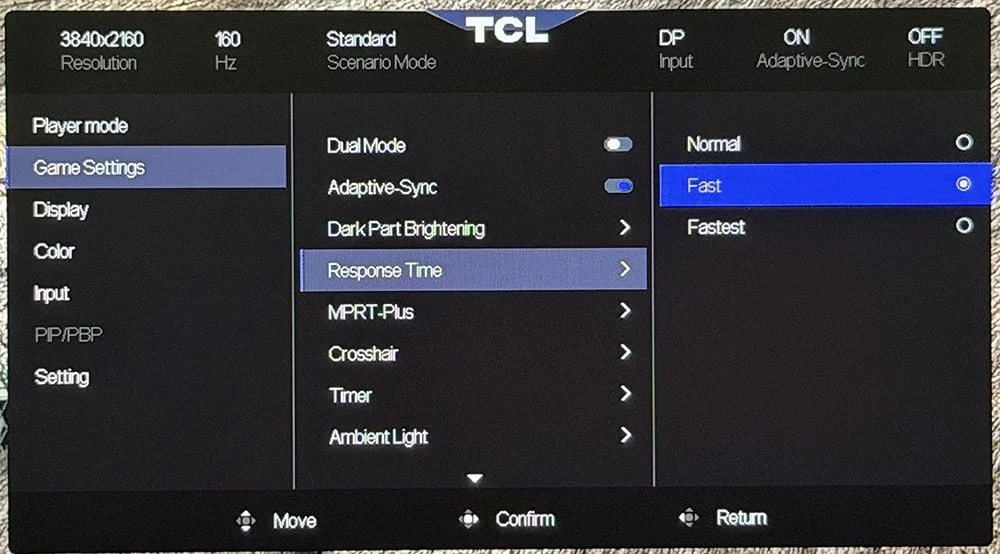
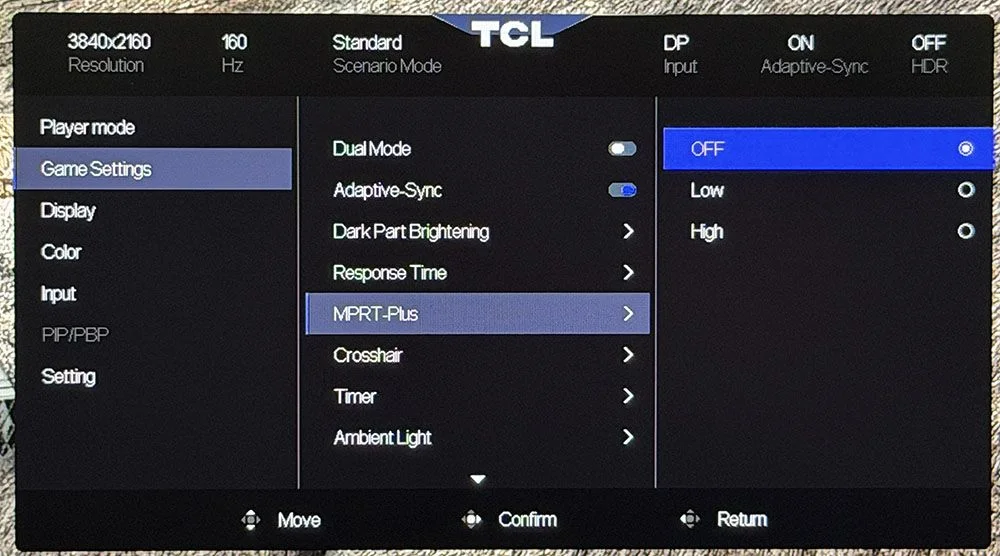
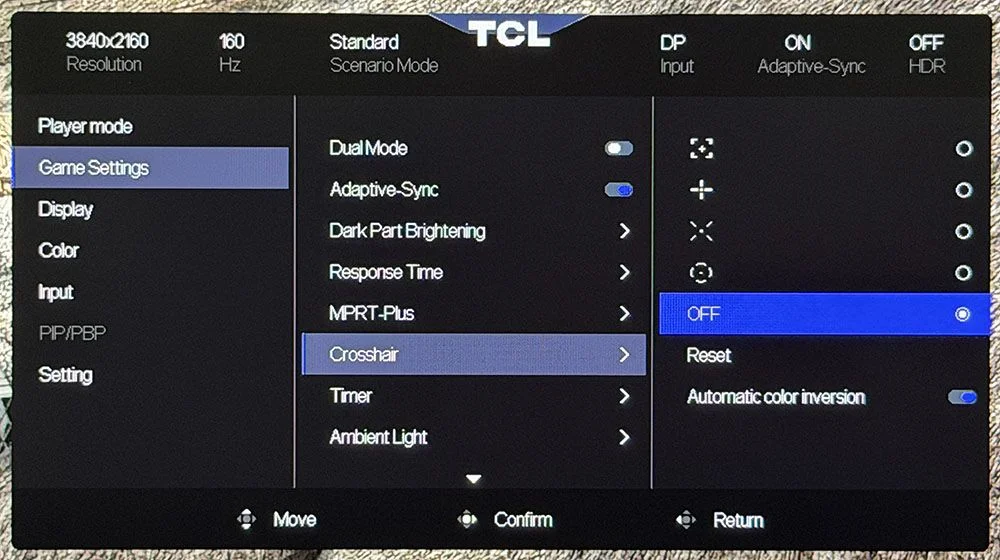
Game Settings gathers the motion controls. Overdrive has three levels, with Fast producing the best result in my testing. MPRT-Plus offers two backlight-strobe settings tied to pulse width. The stronger setting cuts brightness by about 50%, but the monitor has enough headroom to compensate with its brightness control. Adaptive-Sync can remain enabled alongside both MPRT and overdrive, a rare combination. For my tests, Fast overdrive with Adaptive-Sync gave the best overall motion. MPRT nearly erased blur, but added a slight phasing artifact, so I left it off for gaming. The same menu also holds aiming marks, timers and lighting controls.
The Display menu offers three local-dimming settings. Standard has little effect, lifting contrast only to about 1,800:1. Medium and High dim more aggressively; at a zero-level signal, they can switch off the backlight entirely, producing theoretically infinite contrast. Dimming works with both SDR and HDR content.
Color controls include temperature presets and gamut choices for sRGB, Rec.709, DCI-P3 and Adobe RGB. Each preset measured more accurately than the default Original setting. The test results appear on page four, but the practical point is simple: choose the intended gamut and the 27C2A Pro can be highly accurate.
The remaining menus cover picture-in-picture and picture-by-picture, KVM functions, OSD preferences and other conveniences. Factory reset lives under Settings.
TCL 27C2A Pro Calibration Settings
My first measurements were disappointing. The monitor ships in Standard mode with Original color space, a warm color temperature and Gamma 1. Gamma and grayscale were already good, but color tracking was uneven. Switching to sRGB, Rec.709, DCI-P3 or Adobe RGB corrected the problem, bringing gamma and grayscale close to ideal. I made only small adjustments to the RGB sliders.
HDR offers Display and Cinema presets. Their color is the same, while their EOTF curves differ slightly. I preferred Display; it provides RGB sliders and a brightness control. Local dimming is adjustable in HDR as well, and High gave the deepest blacks and strongest contrast.
Picture mode | Standard |
Brightness at 200 nits | 43 |
Brightness at 120 nits | 21 |
Brightness at 100 nits | 17 |
Brightness at 80 nits | 11 |
Brightness at 50 nits | 4 (minimum 39 nits) |
Contrast | 50 |
Gamma | 1 |
Color space | DCI-P3, Rec.709, sRGB, Adobe RGB |
User color temperature | Red 49, Green 49, Blue 51 |
Gaming and Hands-on
The 27C2A Pro gets surprisingly close to the appeal of a premium OLED: it’s bright, colorful and fast, with smooth motion and deep contrast. It can’t match OLED’s pixel-level black control, but 2,304 dimming zones and intense highlights narrow the gap. That’s more significant than it might sound; if you play HDR games in a bright room, the TCL has headroom OLEDs often can’t match.
I normally set review monitors to 200 nits, which used only about a third of this display’s SDR brightness range. Local dimming also worked in SDR as well as HDR, a useful option because many monitors restrict it to HDR.
Color looked vivid and accurate once I found the right settings. The initial results were odd, but there’s a straightforward fix: select the gamut you need and avoid Original in the OSD’s color-space menu.
My PC, equipped with a GeForce RTX 4090, had no trouble sustaining 160fps in 4K. The FHD/320 Hz mode also worked as advertised. Because 1080p is an exact integer scale from 4K, the image wasn’t as soft as you might expect. That makes the dual-mode feature practical for consoles and less powerful graphics cards, too.
It’s unusual to find overdrive, MPRT strobing and Adaptive-Sync available at once, especially on a $600 display. For frame rates below 144 Hz, MPRT can reduce blur substantially; the tradeoff is a slight phasing artifact. Fast overdrive was effective on its own, and I preferred it with Adaptive-Sync for my testing.
Input lag never stood out as a problem. Controls responded without perceptible delay, while moving objects and backgrounds stayed sharp. The display has the quick, smooth feel that makes games hard to put down.
For creative work, the preset color spaces make the monitor more versatile than most gaming displays. sRGB, Rec.709, DCI-P3 and Adobe RGB all measured accurately without calibration. Adobe RGB is especially uncommon here. If you need a screen for print work, the 27C2A Pro qualifies as a reference display.
The feature list is long: rear lighting, internal speakers, USB ports with KVM, and a distinctive white finish. The stand remains the compromise. Its base and upright are solid, but the panel connection wobbles enough that I’d consider putting some of the money saved over an OLED toward a monitor arm.
Takeaway: The TCL 27C2A Pro combines fast 4K gaming, a 320 Hz FHD mode, accurate color presets and impressive Mini LED contrast. Its 2,304 dimming zones deliver deep blacks, while its brightness exceeds what OLED displays can typically offer. Add the ability to run Adaptive-Sync, overdrive and strobing together, and $600 looks like a strong price for a monitor that can handle both games and creative work.
MORE: Best Gaming Monitors
MORE: How We Test PC Monitors
MORE: How to Buy a PC Monitor
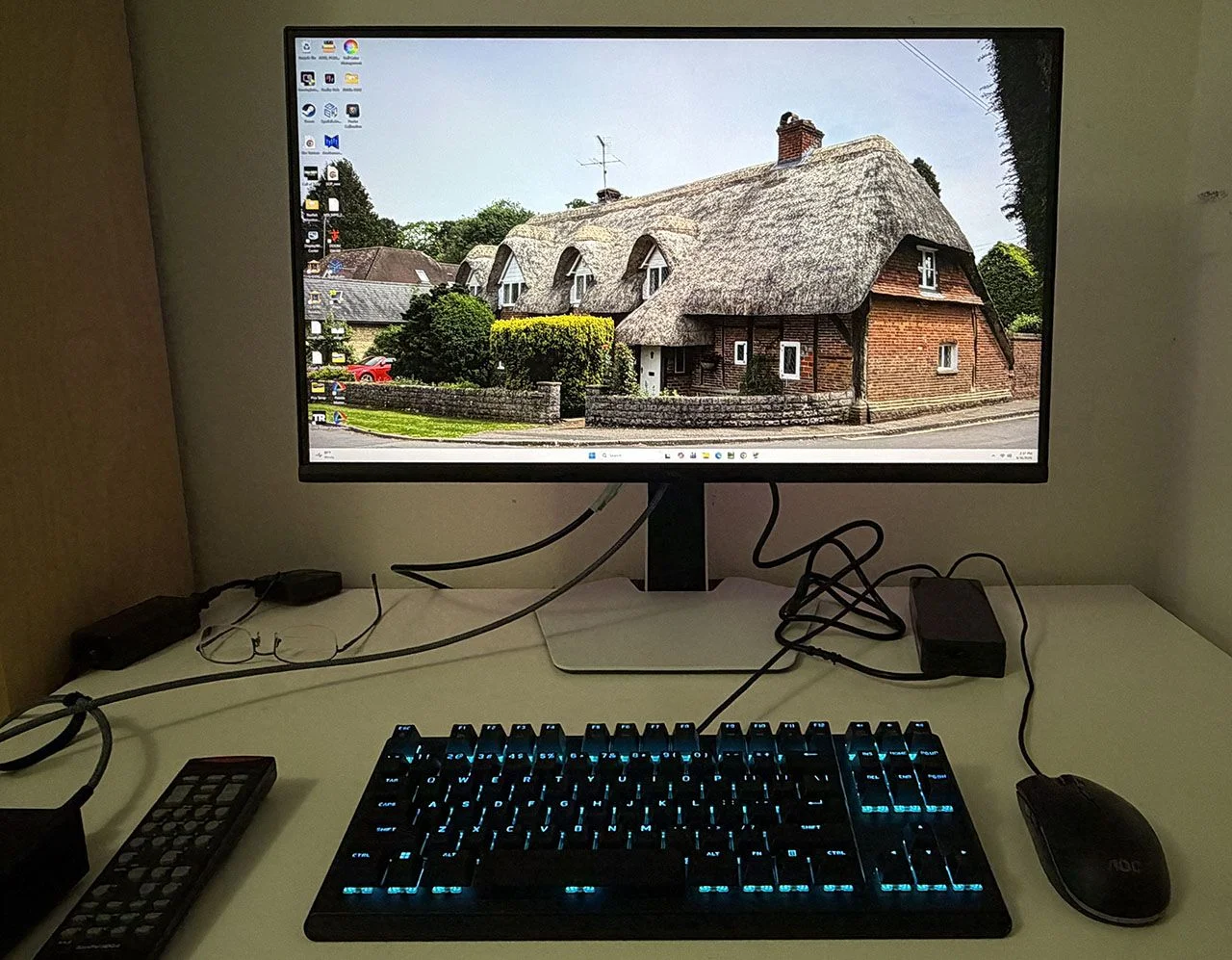
There are fewer 27-inch 4K LCDs in my test database than OLEDs, so I reached further back to assemble a five-monitor comparison. The group includes TCL’s 27R94, AOC’s U27G4XM, ViewSonic’s VX2730D-4K, Acer’s XB273K V5 and Titan Army’s P2712V.
Pixel Response and Input Lag
Read about our pixel response and input lag testing procedures.
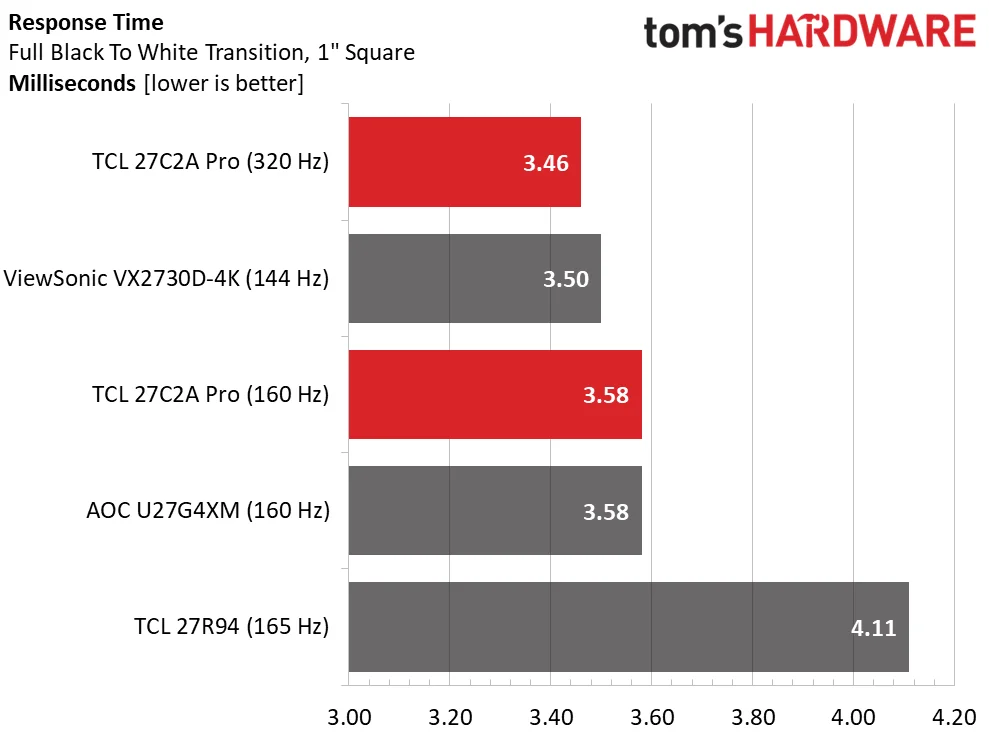
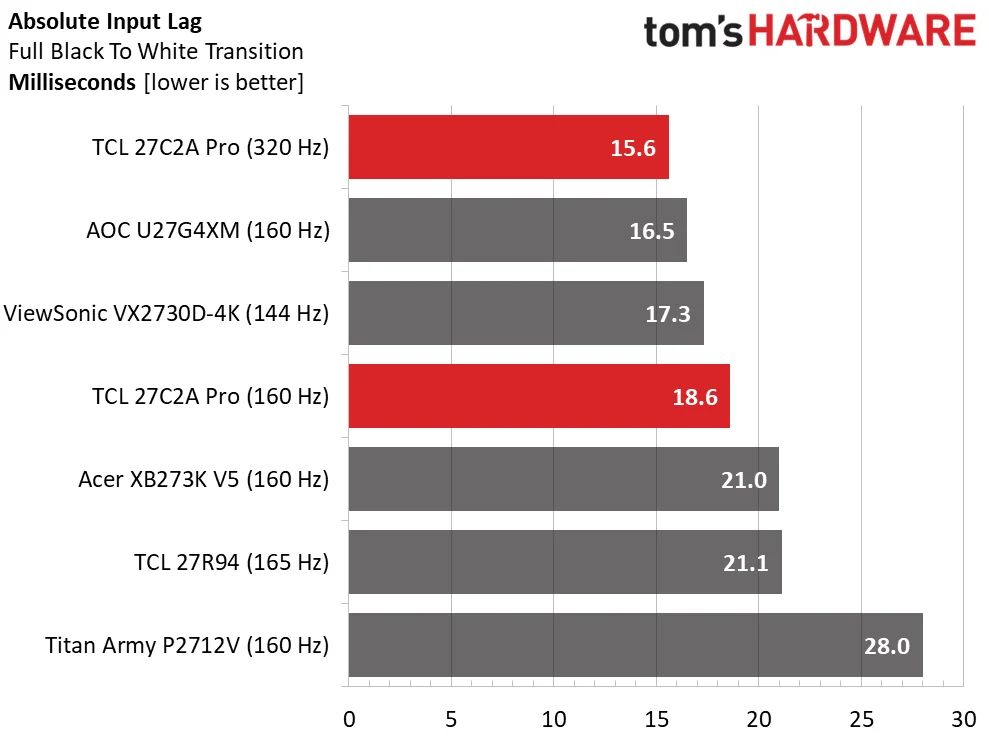
The 27C2A Pro’s motion performance is less about record response times and more about how well TCL has tuned its overdrive. It isn’t the quickest panel here, but that tuning keeps blur low. The 27R94 trails the other tested monitors, while the remaining results are close. The P2712V and XB273K V5 weren’t tested with Nvidia LDAT, so they don’t appear in the response chart. Switching the 27C2A Pro from 160Hz to 320Hz makes it marginally faster, though the difference isn’t visible. MPRT cuts blur further, with a slight phasing artifact as the tradeoff.
Input lag was around average at 160Hz and the best in the group at 320Hz. You’re unlikely to feel that gap in normal play. The dual mode is most useful when your system can’t hold 160fps at 4K: drop to FHD and use 320Hz instead. Either way, the monitor is responsive enough for competitive play.
Test takeaway: This is a credible gaming display, with performance in line with other 27-inch 4K LCDs. Its standout is the combination of well-controlled overdrive and backlight strobing that works with Adaptive-Sync. The 320Hz FHD mode adds flexibility, though it doesn’t transform the monitor’s response time.
Viewing Angles
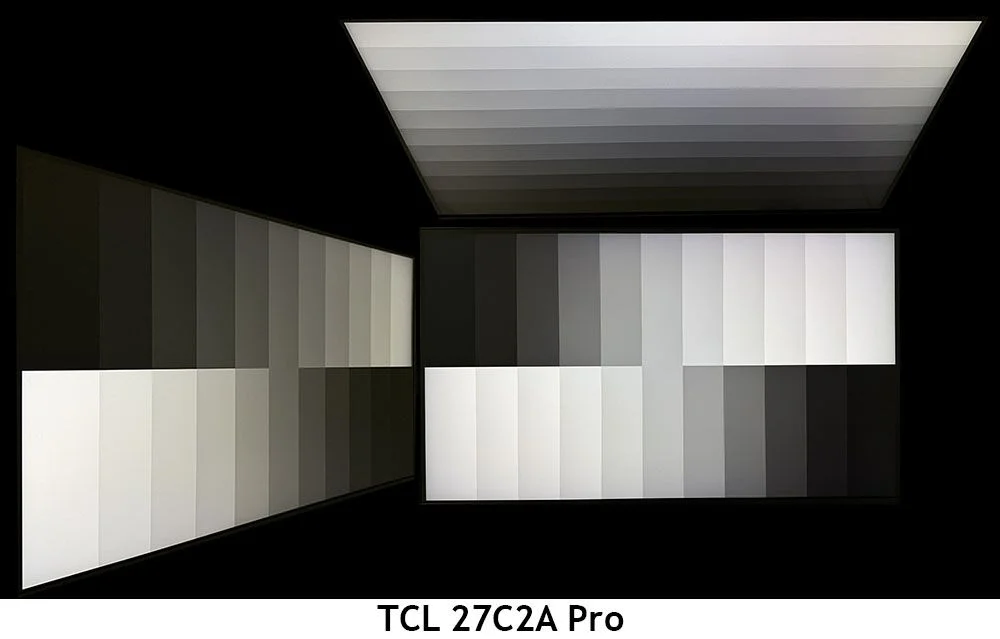
Viewing angles are a real strength. From the side, the image takes on a faint green cast, but brightness and gamma hold steady. Looking down from above shifts the picture cooler and reduces both brightness and gamma. Even so, it’s easy to share the screen with someone beside you.
Screen Uniformity
For details on our screen uniformity measurements, see how we test PC monitors.
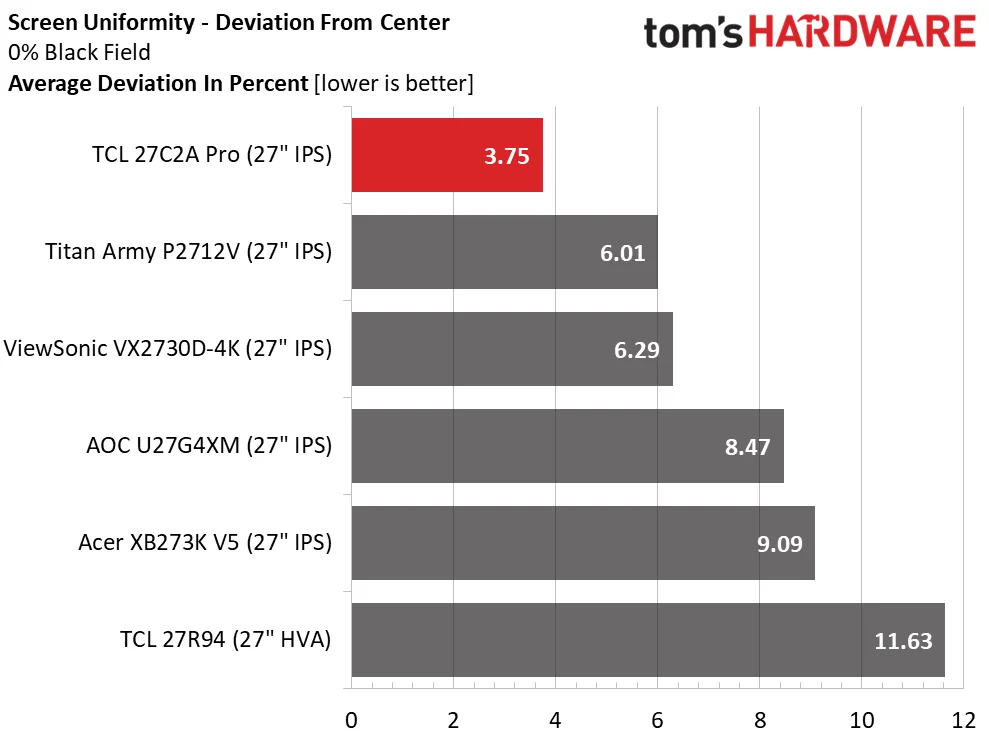
Uniformity is among the best results I’ve seen from an LCD: deviation averaged just 3.75% from the center zone. I saw no backlight bleed or glow in any pattern, across brightness and color settings. That’s unusually clean for an LCD.
MORE: Best Gaming Monitors
MORE: How We Test PC Monitors
MORE: How to Buy a PC Monitor
For an in-depth explanation of our monitor tests, read Display Testing Explained: How We Test PC Monitors. Brightness and contrast testing is covered on page two.
Uncalibrated – Maximum Backlight Level
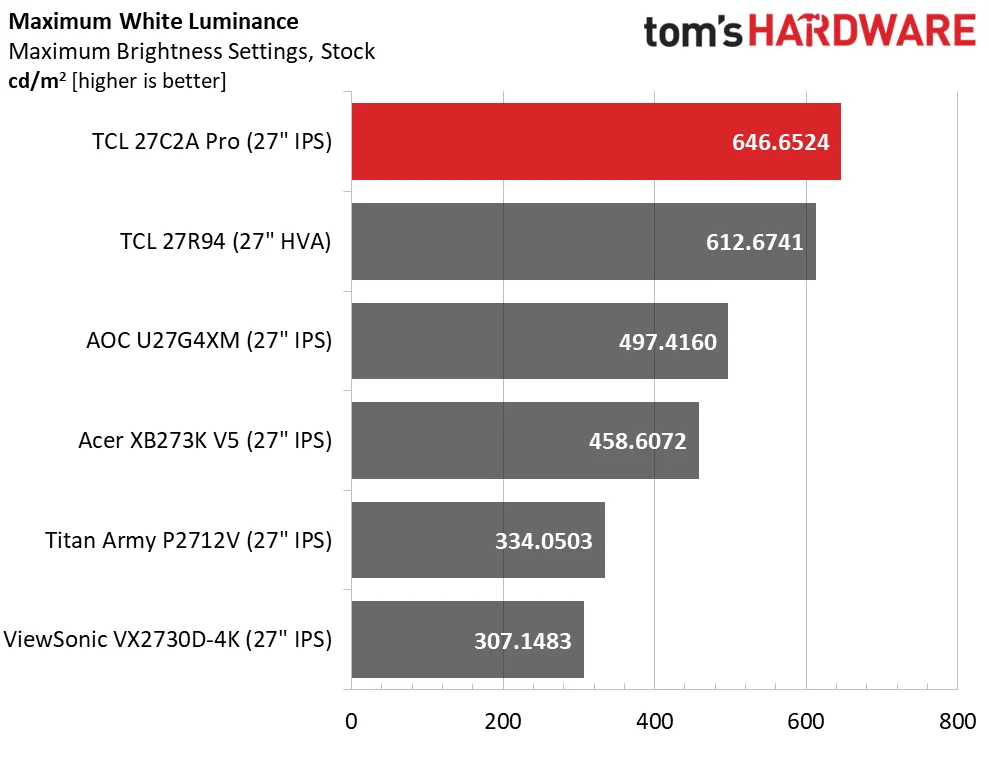
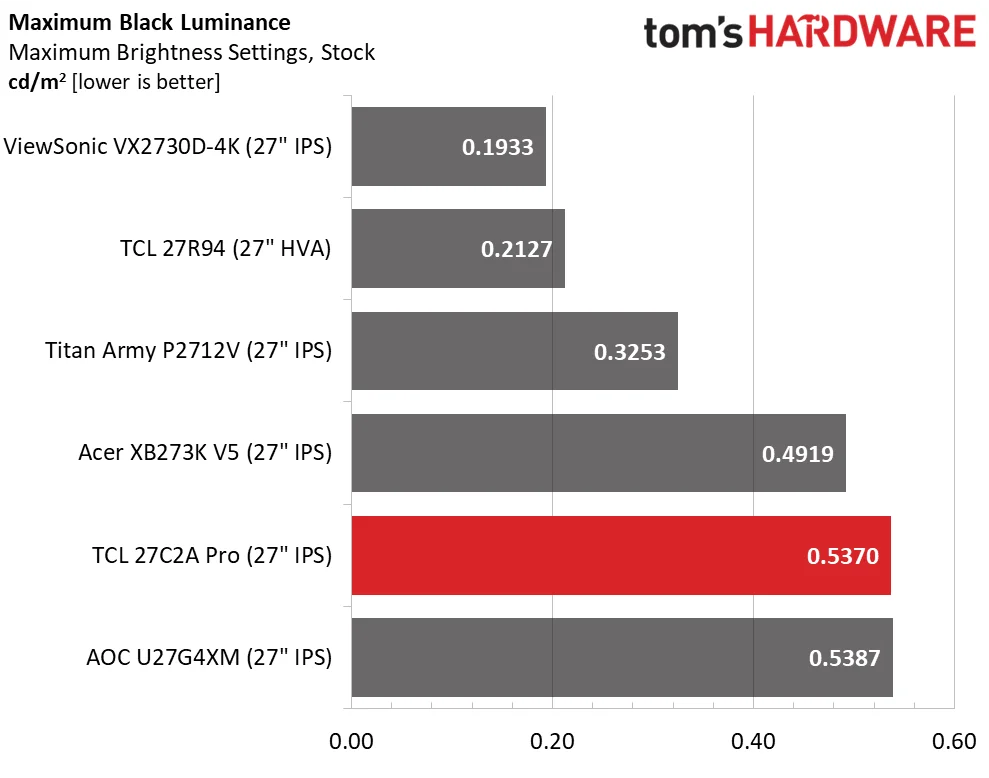
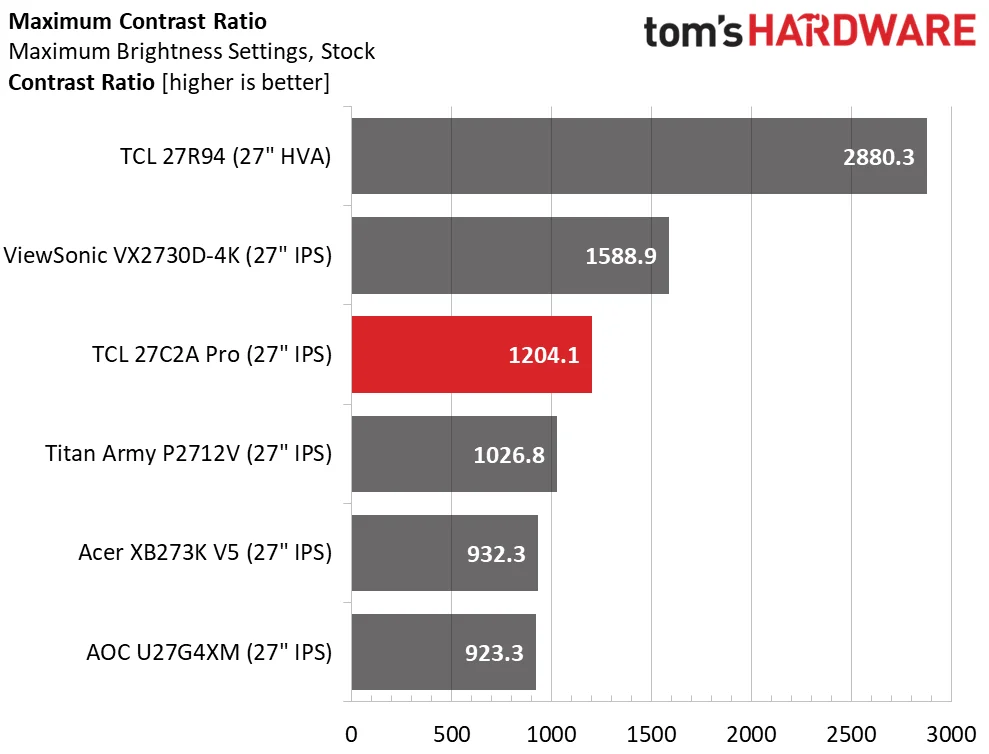
Brightness is where the 27C2A Pro makes its strongest case. With local dimming disabled, it reached nearly 650 nits on a full white SDR field. Enable dimming and the High setting pushed a 25% window to about 1,600 nits, too low to measure black levels. Standard dimming produced a contrast ratio around 1,800:1; without local dimming, native contrast measured 1,204.1:1, ahead of the usual IPS result.
After Calibration to 200 nits
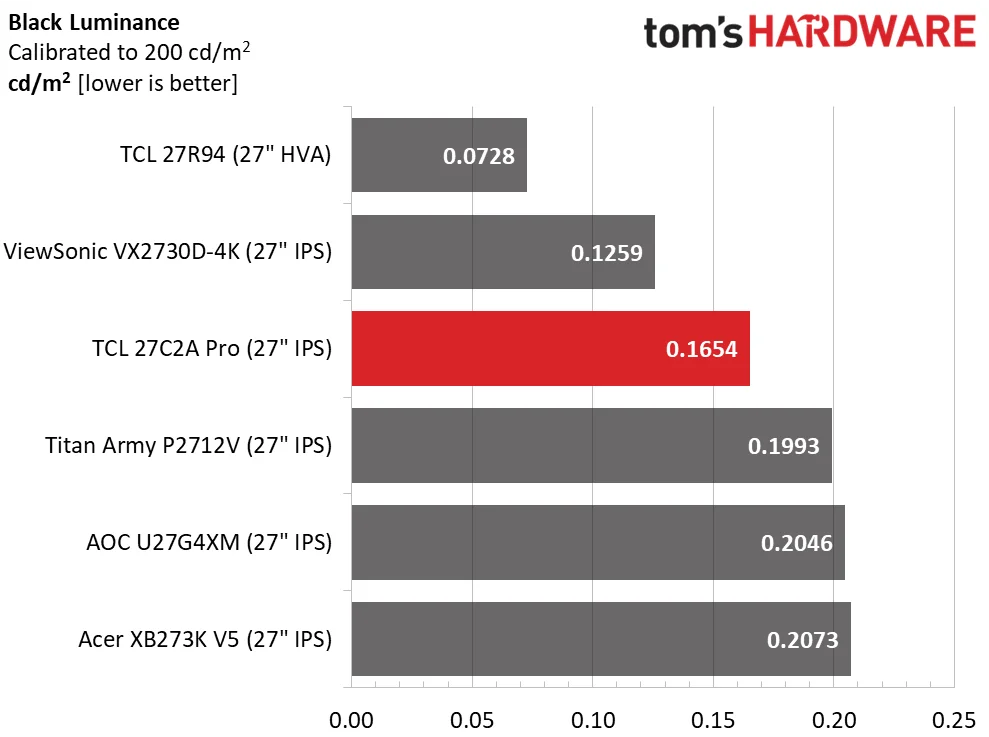
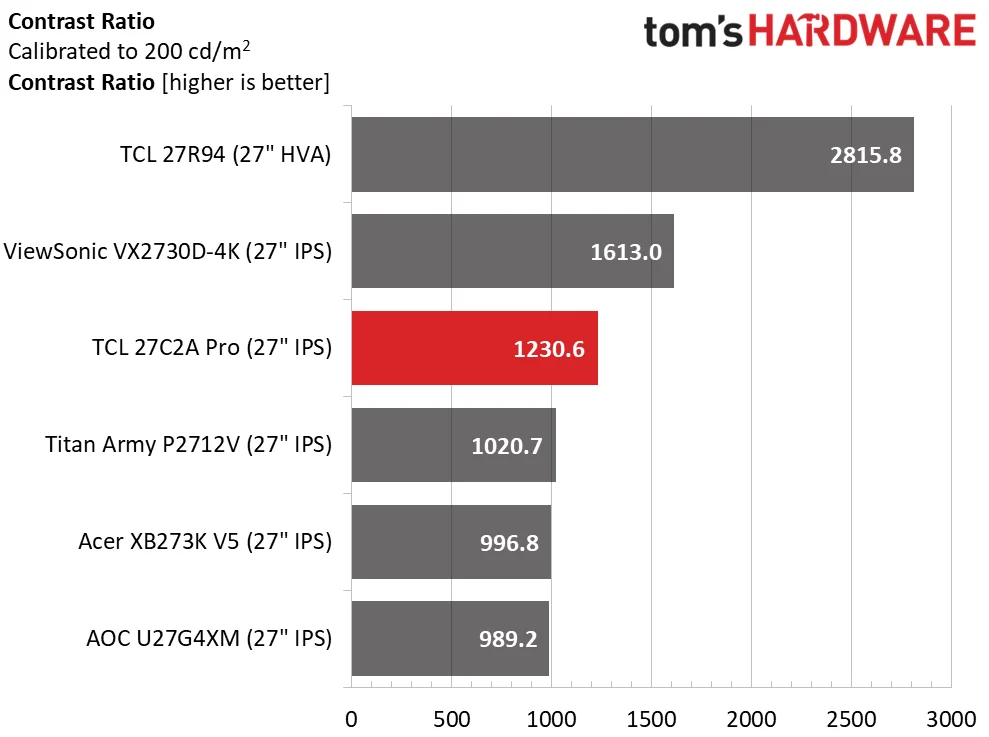
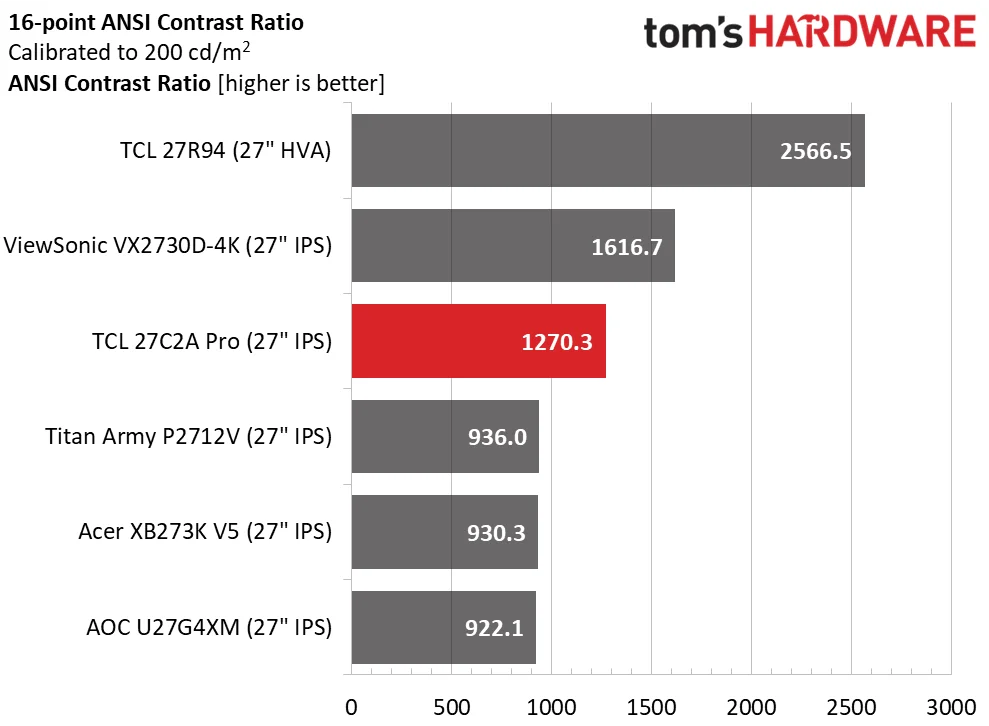
For calibration, I set output to 200 nits, chose DCI-P3, and adjusted the RGB controls. Contrast improved slightly, reaching 1,270.3:1 in the ANSI test with local dimming still off. That exceeds the static result, an uncommon outcome and an excellent showing.
Test takeaway: The combination of strong native contrast, local dimming in both SDR and HDR, and exceptionally high peak brightness gives this LCD unusual depth. The top two dimming settings drove black levels below the meter’s range. Full-field brightness approached 650 nits, while a 25% window exceeded 1,500 nits. Its 2,304-zone FALD backlight can produce an image with much of OLED’s depth and texture, though it doesn’t quite equal OLED in practice.
MORE: Best Gaming Monitors
MORE: How We Test PC Monitors
MORE: How to Buy a PC Monitor
The default Standard mode compromises on color accuracy, but a few adjustments can bring it close to professional levels.
Grayscale and Gamma Tracking
Grayscale and gamma measurements use Calman software from Portrait Displays. Our testing method is explained here.
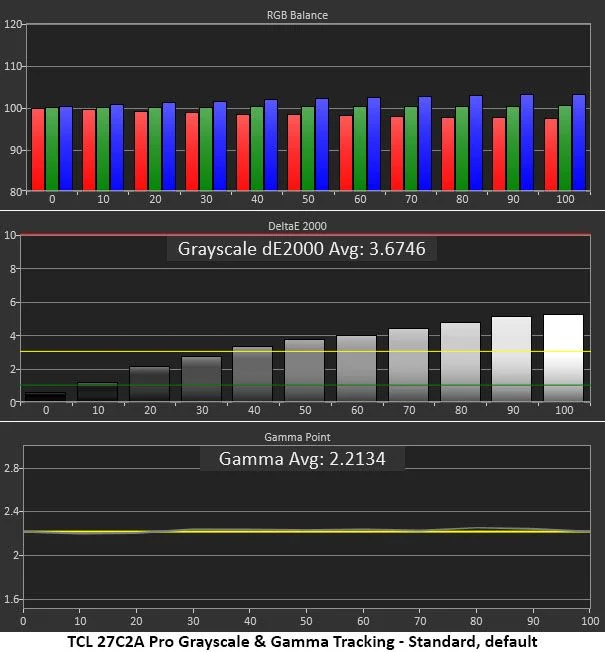
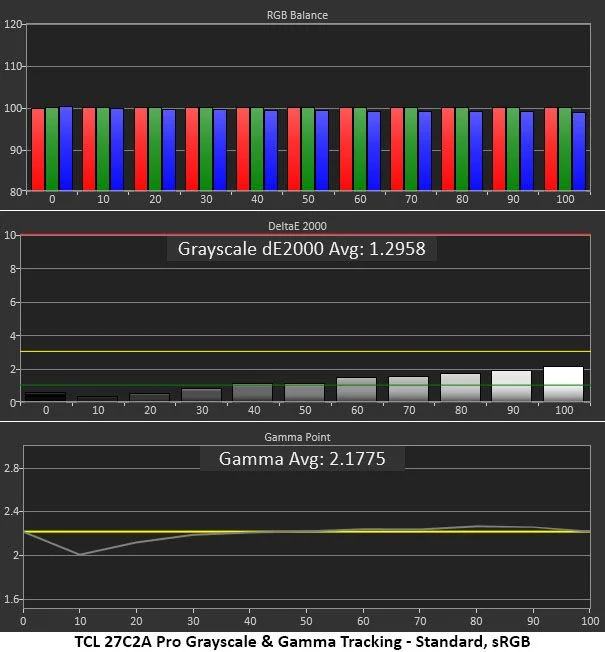
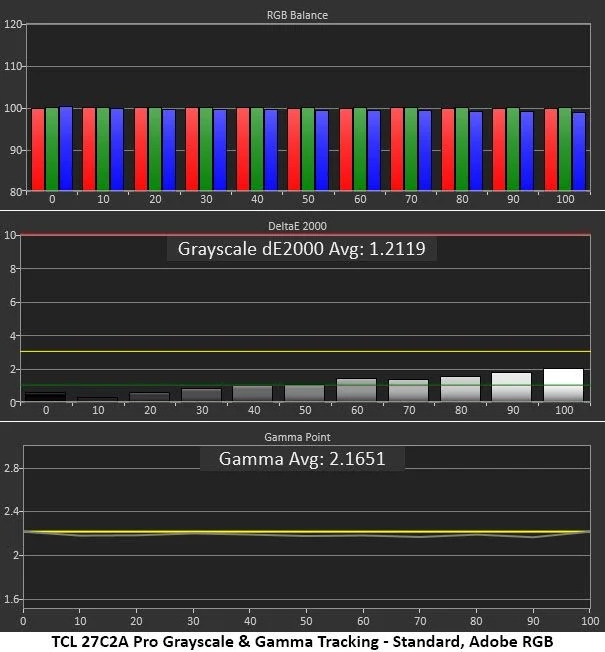
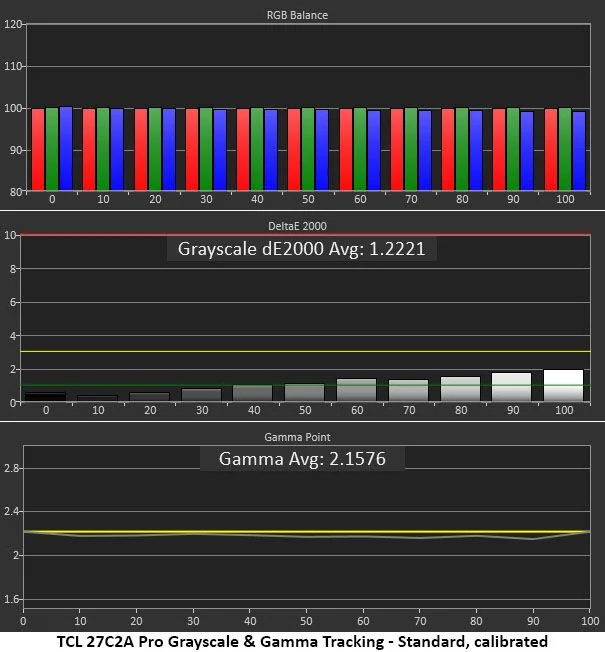
Standard mode has a slight blue bias, but gamma tracking is almost spot on. The more useful surprise is that sRGB mode removes visible grayscale errors, with only a small gamma dip at the 10% brightness step. Adobe RGB also tracks grayscale and gamma very well; that mode won’t matter much for games, but it’s useful for print work.
Calibration brings grayscale to an excellent level, with gamma just a touch lighter. The route to that result takes a different approach from the usual RGB adjustment, as the following section explains.
Comparisons
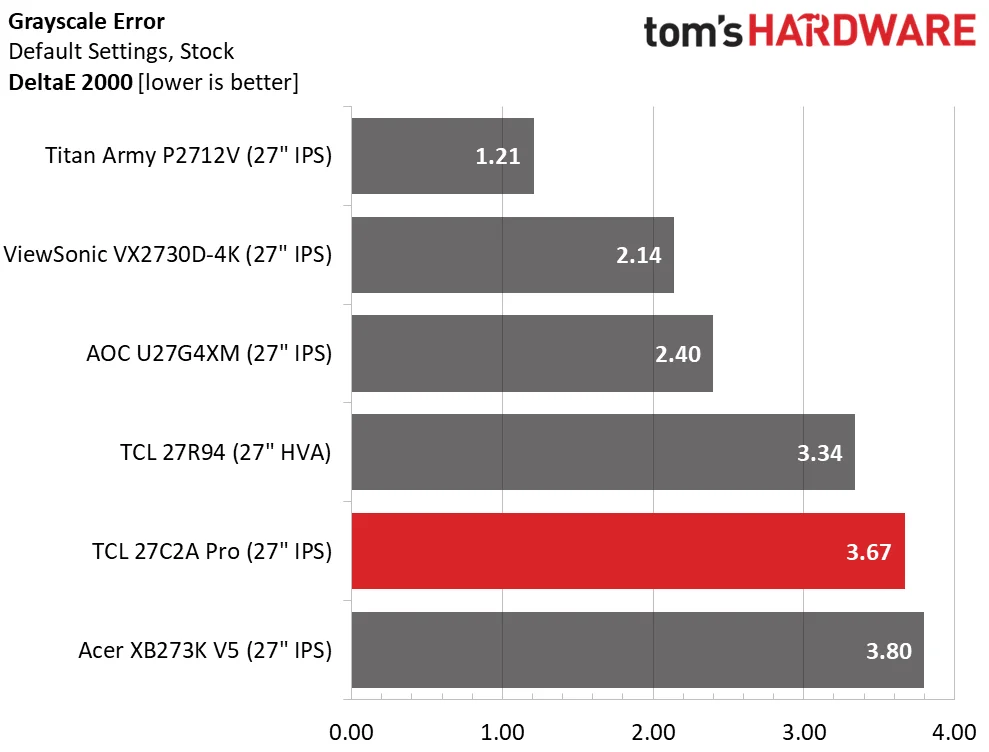
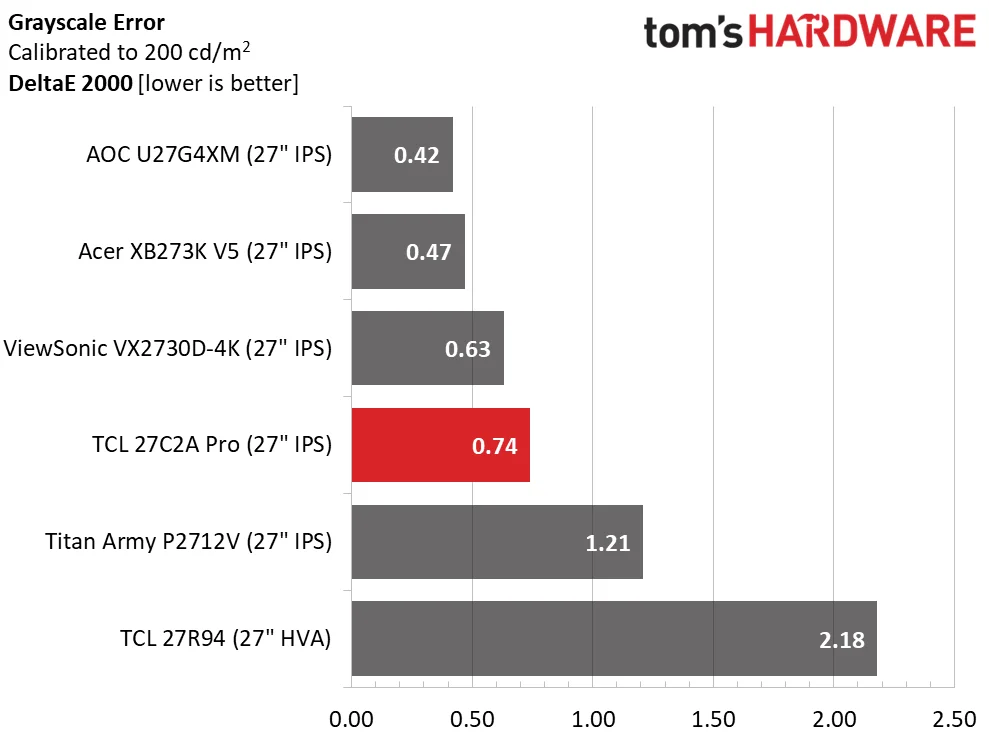
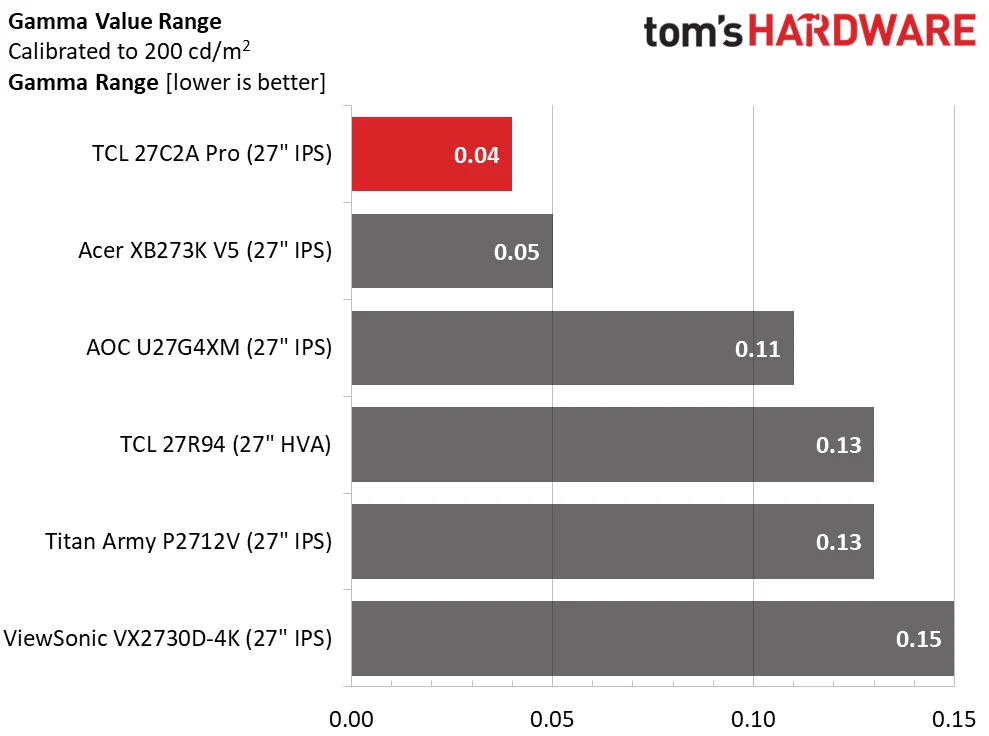
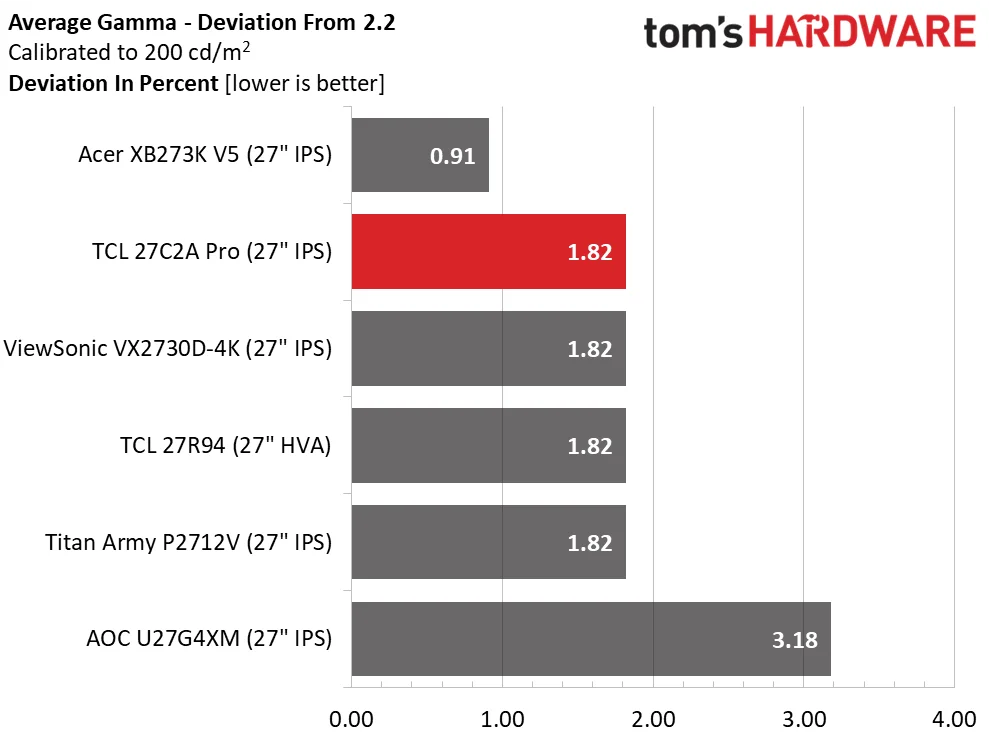
Out-of-box grayscale error measured 3.67dE, reflecting the slight blue cast. Calibration brought it down to 0.74dE, matching the other displays here. Gamma is excellent either way: its full range spans only 0.04, with an average deviation of 1.82% and a measured value of 2.16.
Color Gamut Accuracy
Portrait Displays’ Calman software handles our gamut and volume tests; see the test details here.
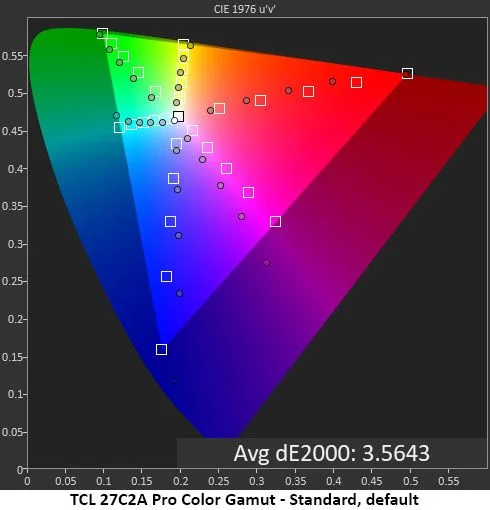
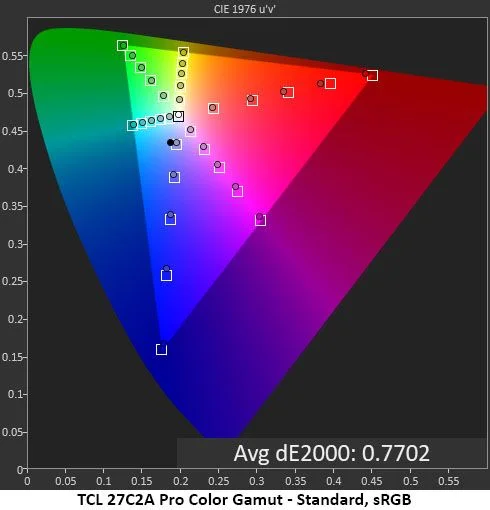
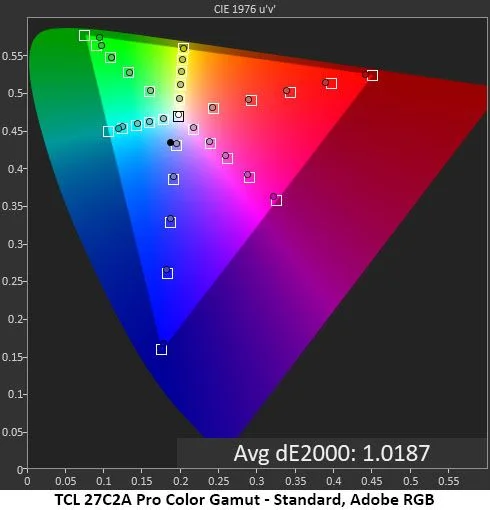
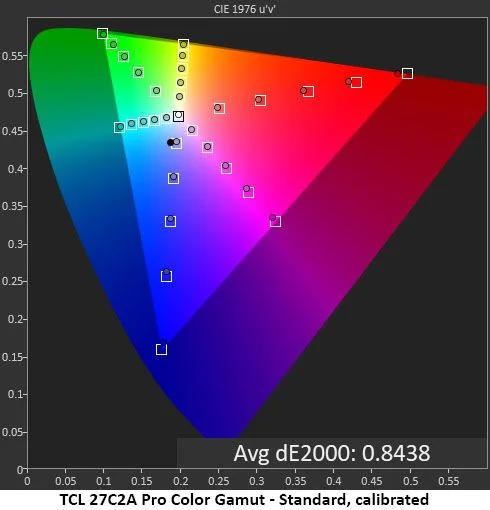
Gamut accuracy is the weak spot in the default setup. Colors show clear hue errors, with some undersaturated and others oversaturated. The fix is straightforward: pick the matching DCI-P3, sRGB, or Adobe RGB mode, then adjust the RGB sliders. Gamma control is disabled in these modes, but the measured gamma is already excellent. All three options test accurately; Adobe RGB is slightly short in green, a common limitation for LED-backlit LCDs.
Comparisons
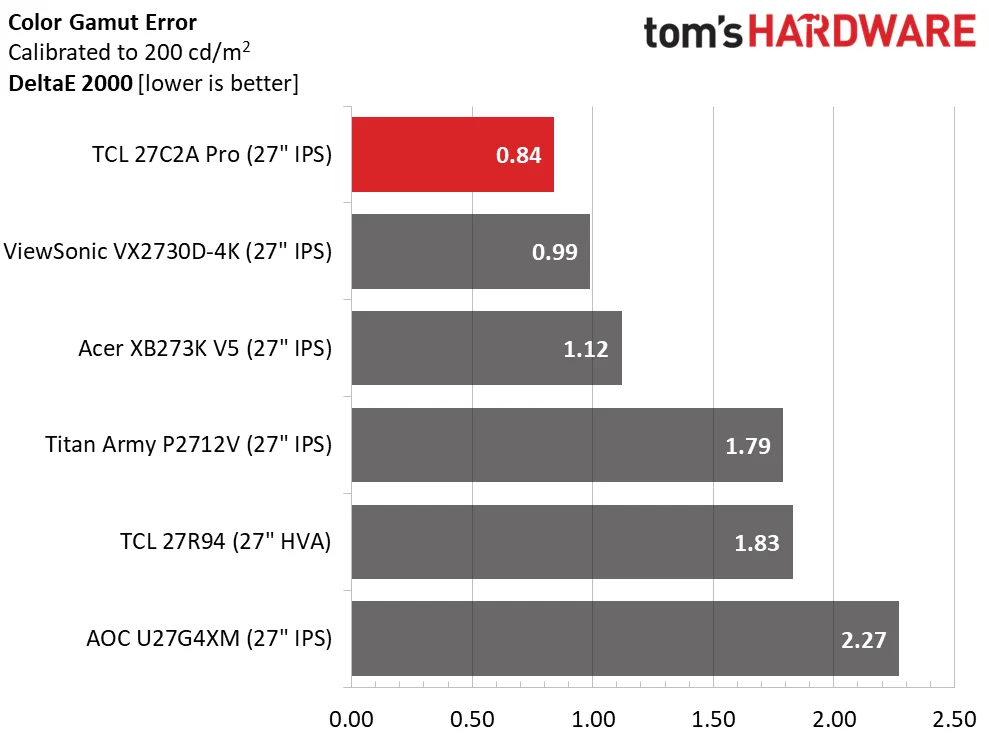
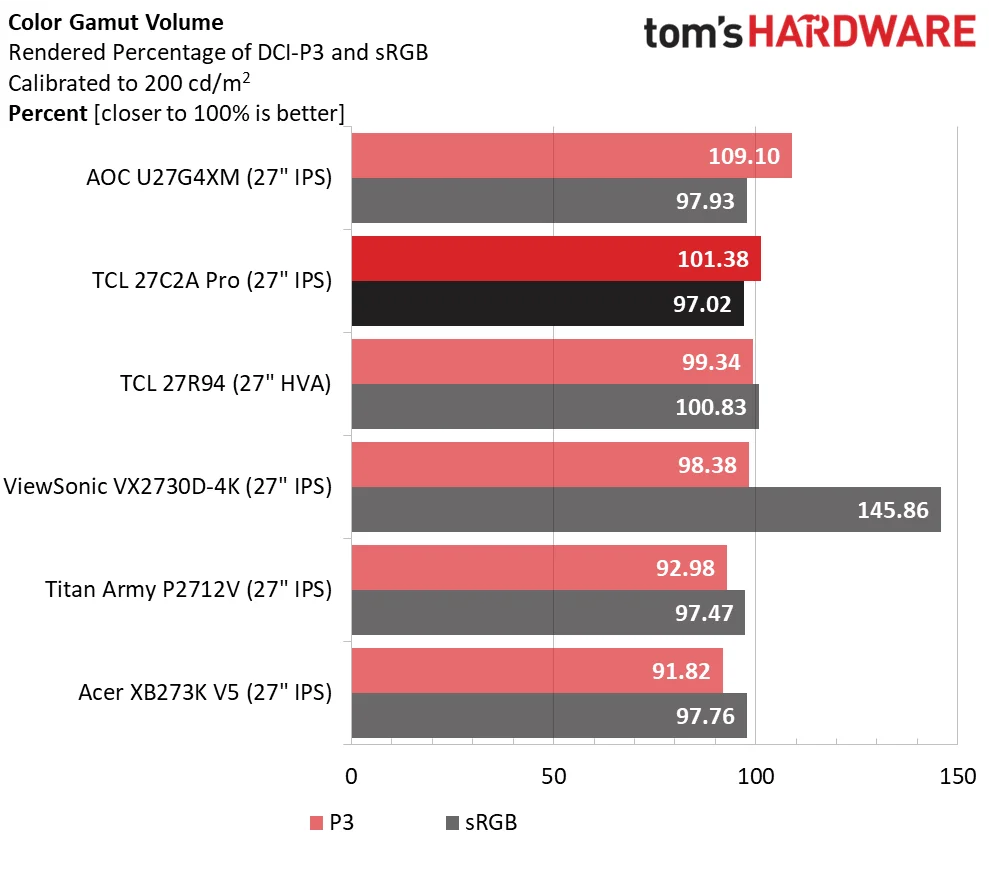
With average gamut error below 1dE, the 27C2A Pro qualifies for color-critical work and outperforms the other strong displays in this comparison. Choose the matching color-space preset and skip Original mode. Post-calibration DCI-P3 volume reaches 101.38%: a little less blue coverage than the AOC, another Quantum Dot display, but comfortably ahead of non-QD screens. sRGB volume is 97.02%, with a small shortfall in red.
Test takeaway: Accurate color is available through the dedicated gamut presets; Original mode is the one to avoid. Grayscale and gamma are already close to perfect, and calibration is largely unnecessary beyond selecting the right gamut and tuning RGB. Adobe RGB is a useful extra for print creators.
MORE: Best Gaming Monitors
MORE: How We Test PC Monitors
MORE: How to Buy a PC Monitor
HDR measurements use Portrait Displays’ Calman. Read about our HDR test method.
HDR10 support includes two similar picture modes, both allowing grayscale and brightness adjustments. Local dimming remains available for contrast, and switching into HDR mode happens automatically.
HDR Brightness and Contrast
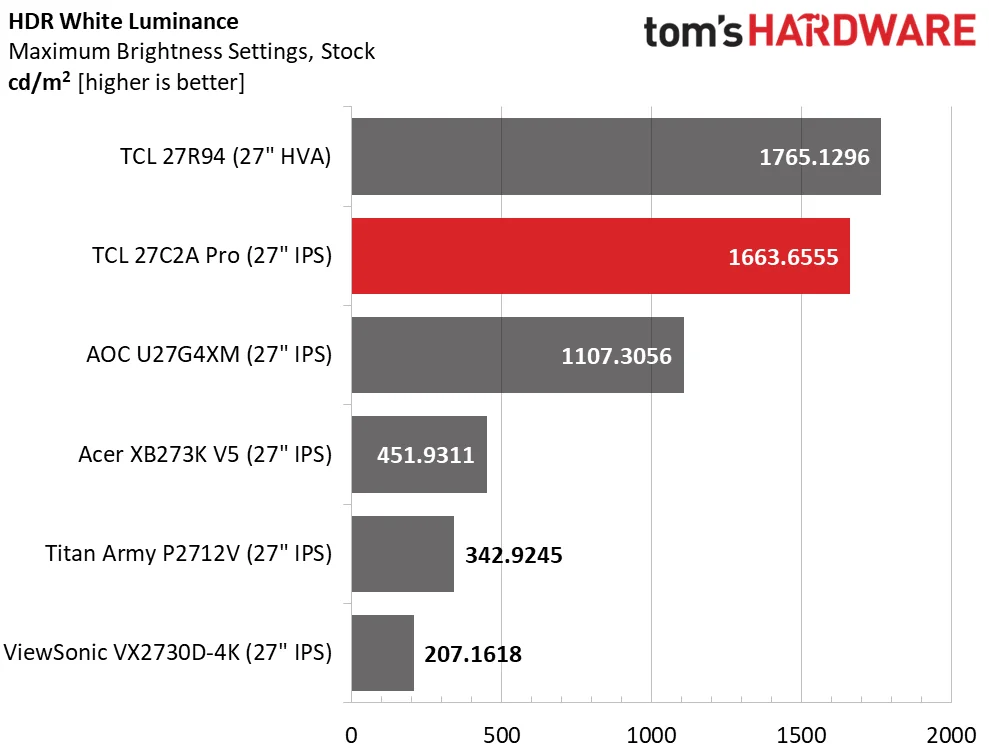
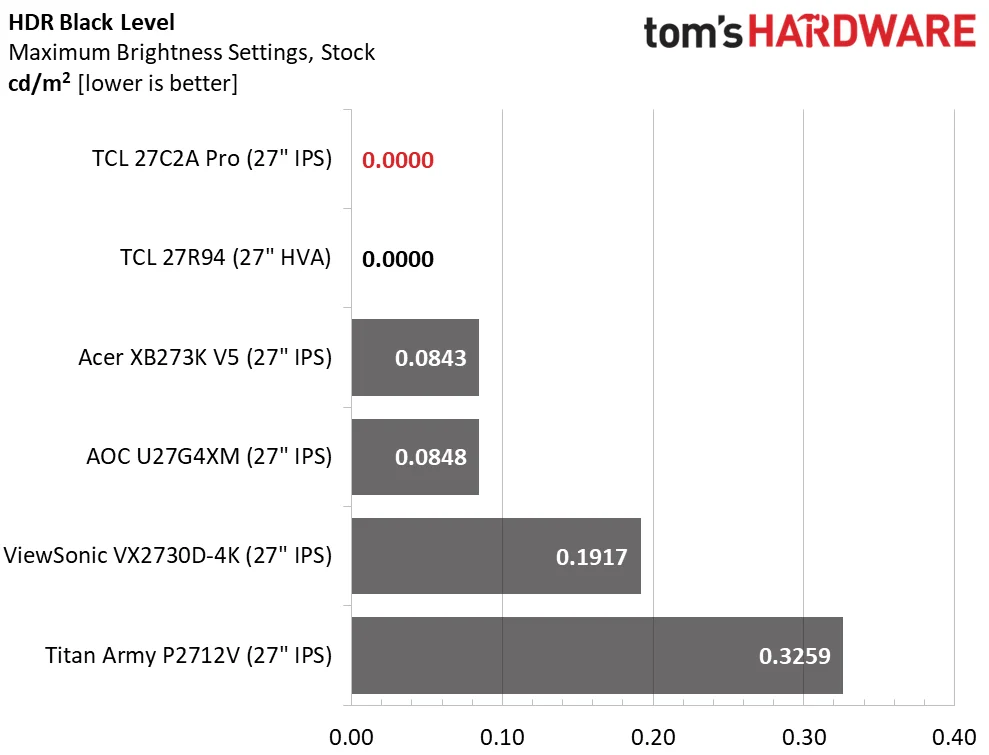
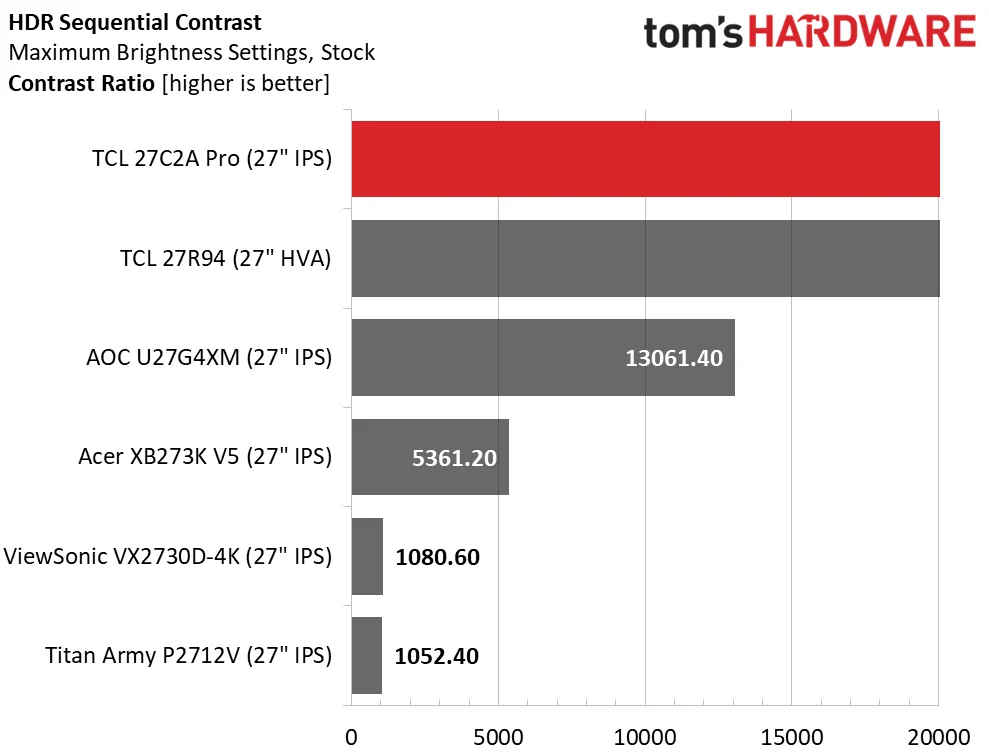
The 27C2A Pro reached 1,663 nits at a 25% window, showing the payoff from its Mini LED backlight. TCL’s 2,000-nit claim for a 3% window checks out. With local dimming set to High, the backlight turns off when there’s no signal, so the meter can’t register black level or contrast, much like on OLED. Real scenes still don’t quite match OLED, but 2,304 dimming zones and TCL’s dynamic contrast processing bring this LCD closer than other LCD approaches.
Grayscale, EOTF and Color
The TCL 27C2A Pro makes a stronger case for high-end LCD than its HDR numbers alone suggest: it pairs deep local dimming with unusually flexible picture controls, vivid color and fast gaming performance. The trade-off is familiar. It can get far brighter than an OLED, but its image doesn’t have quite the same fine texture.
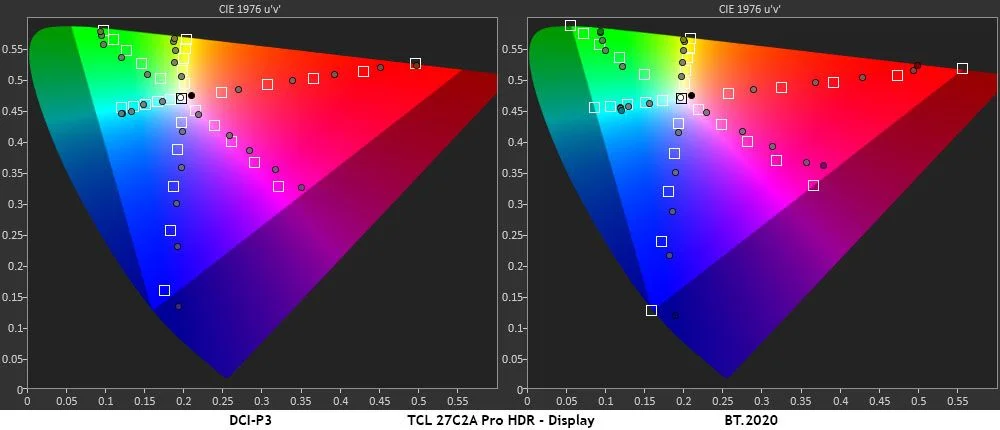
HDR calibration and color
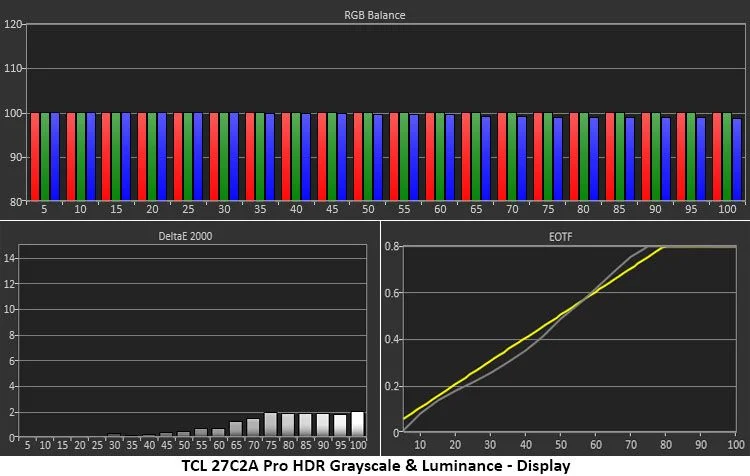
HDR grayscale turned out exceptionally clean. Because the RGB sliders remain available in HDR, I carried over the adjustments from SDR; nearly every grayscale error then fell below 2dE. Display and Cinema modes tracked EOTF a little differently. I preferred Display: Cinema looked marginally brighter and less textured, though the gap was subtle.
Color is strong, with a few small caveats. Magenta, green and yellow sit slightly off hue, and the color triangle is generally oversaturated—much like other HDR monitors I’ve tested. The full DCI-P3 gamut is covered, with some extra blue and magenta. BT.2020 coverage reaches 88% for red and 75% for green, while blue extends a little beyond 100%.
That level of control is a real point in the TCL’s favor. You can adjust color temperature, brightness and local dimming in HDR, where many monitors offer little beyond a picture mode. The result is a bright, high-contrast image with accurate color, even if OLED still holds an edge in perceived texture.
MORE: Best Gaming Monitors
MORE: How We Test PC Monitors
MORE: How to Buy a PC Monitor
Sharp, bright and built for play
For a compact gaming setup, 27 inches at 4K is hard to beat for detail. The 27C2A Pro’s 163ppi density is finer than you’ll find on most displays; 5K, 6K and 8K options remain relatively rare. TCL backs that sharpness with bright output, careful color tuning and capable video processing.
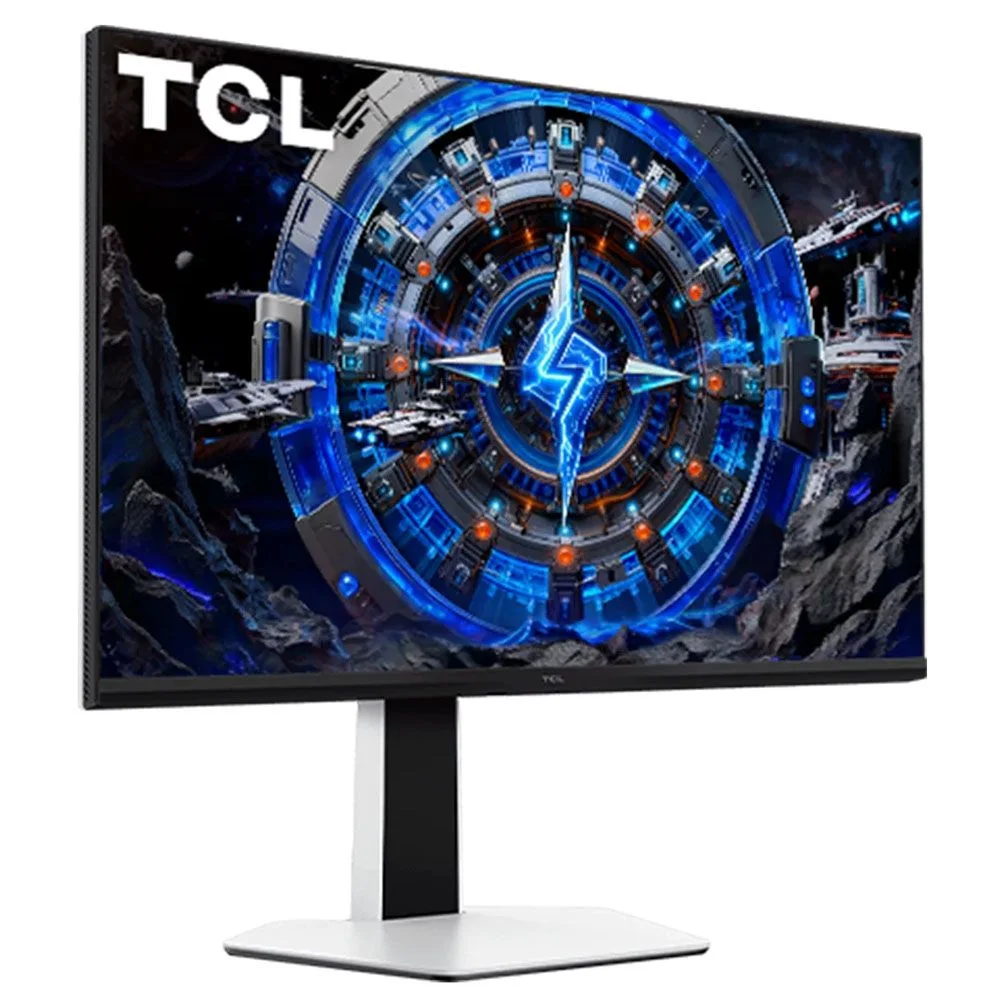
Once I worked out the color settings, accuracy was excellent, including Adobe RGB and Rec.709 modes—useful options that are uncommon outside professional displays. Brightness is a headline feature: TCL rates it at 2,000 nits in a 3% window, and my measurement of nearly 1,700 nits in a 25% window makes that claim plausible. Its 2,304-zone local dimming also produces very deep blacks, and I found it useful with both SDR and HDR content.
Gaming feels unusually engaging for an LCD. The monitor lets you combine overdrive, Adaptive-Sync and backlight strobing, a rare degree of freedom, while 4K runs at up to 160 Hz for smooth motion and responsive controls. A dual-mode option gives console players and owners of midrange graphics cards another route: switch to FHD and the refresh rate climbs to 320 Hz.
The stand is the weak spot. It stays stable, but the panel still wobbles; for daily use, I’d consider a monitor arm. The extras help round out the package: LED lighting, built-in speakers and USB ports make this a well-equipped display.
If you want OLED-like gaming, deep contrast and saturated color but prefer an LCD’s brightness, the TCL 27C2A Pro is a compelling option. It won’t reproduce OLED’s texture, but its combination of sharp 4K, strong HDR and flexible gaming features makes it worth a look.
MORE: Best Gaming Monitors
MORE: How We Test PC Monitors
MORE: How to Buy a PC Monitor