The PlayStation 5’s USB ports can do far more than charge a DualSense controller. They connect VR hardware, headsets and other controls; hold games and media; and provide a route to back up some console data. The practical catch is that port speed and drive format matter. A device that works in one port or setup may be too slow, unsupported or incompatible with another use.
Know which ports handle speed
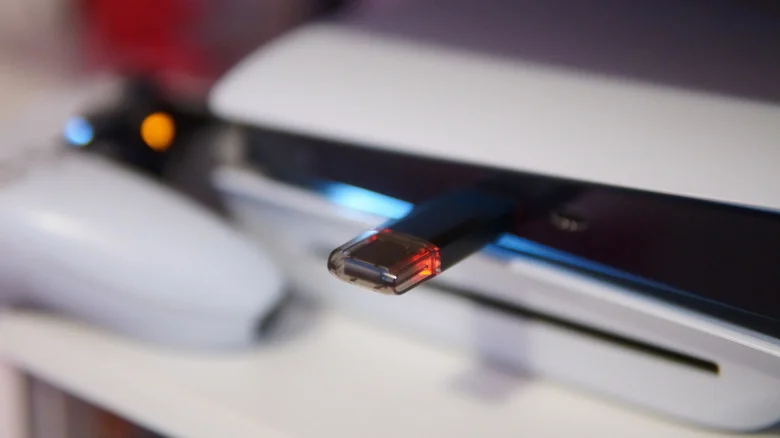
Every PS5 model has two rear USB-A ports rated at 10 Gbps. The front layout varies: the original PS5 pairs a USB-A 2.0 port with a 10 Gbps USB-C port, while the Slim and Pro use USB-C for the slower USB 2.0 connection. On those newer models, the bottom front port is the faster USB-C port.
That distinction matters most for external storage and accessories that need a high-speed connection. The slower port still has useful jobs, including charging or pairing a controller. But for a speed-sensitive device, check the port before troubleshooting the device itself.
Use an external drive to manage game storage
PS5 game installs can quickly fill the console’s storage. Adding an M.2 SSD is one way to increase the space available for playing PS5 titles, but an external SSD or hard drive offers another role: keeping games you aren’t currently playing ready to transfer back. PS5 games can’t run from an external drive; they must be played from the console’s internal storage or a compatible M.2 SSD. PS4 games can run from external storage.
That makes an external drive especially useful when reinstalling a large game would take a long time or consume a meaningful share of a limited data plan. Move a PS5 game to the drive for storage, then copy it back when you want to play. The drive must support USB 5 Gbps (USB 3.0) and have between 250GB and 8TB of capacity. The PS5 supports one such drive at a time, and it must connect directly to the console rather than through a USB hub.
To set one up, connect the drive and open Settings > Storage > USB Extended Storage > Format as USB Extended Storage. Formatting erases the drive’s existing contents, so move any files you want to keep elsewhere first.
External storage also works for screenshots and video clips, but the console uses a different format for that purpose. A drive formatted as USB Extended Storage for games can’t also store captured media. For screenshots and clips, use a standard FAT32- or exFAT-formatted drive. Separate drives can keep both uses available, while a flash drive is handy for moving files to a computer.
Charge and pair DualSense controllers
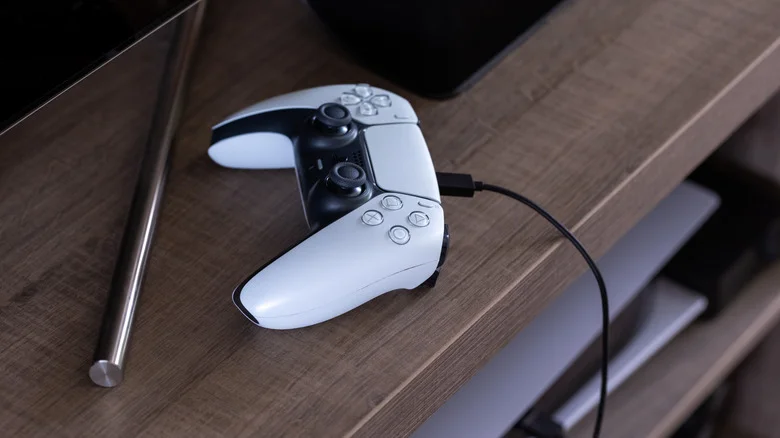
A USB cable provides a simple way to recharge a controller, and connecting a DualSense to the PS5 is also a quick way to pair it. That can come in handy after using the controller with a PC, another console or a friend’s system. Keeping a cable connected to a front port means it’s there when a controller needs pairing or a top-up.
There’s a power setting to check if you charge controllers while the PS5 is in Rest Mode. Go to Settings > System > Power Saving > Features Available in Rest Mode. The 3 Hours option cuts power to the USB ports after three hours. The original PS5 also offers Always; the Slim and Pro include an Adaptive option that stops supplying power once the controller is charged.
Connect VR, audio and game controls
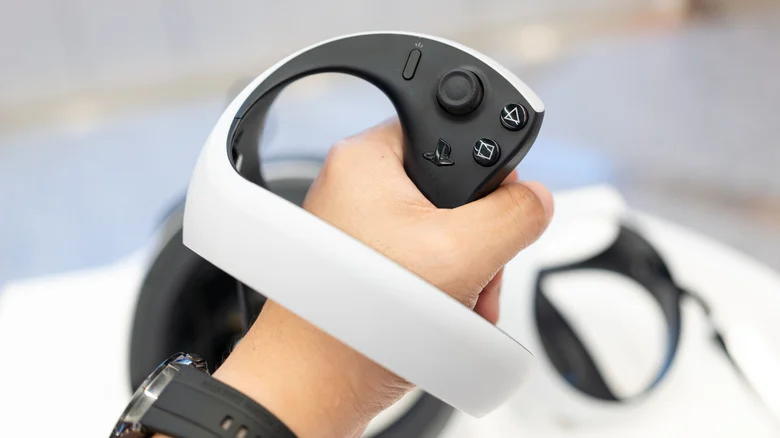
PlayStation VR2 connects to the console through a single USB-C cable. It needs the fast front USB-C port; on Slim and Pro models, that’s the bottom one. The original PS VR can also work with a PS5, but it requires a PS4 camera and an adapter because the PS5 doesn’t have the camera’s proprietary connector. Sony stopped offering the adapter for free in 2024. Our PlayStation VR2 review covers the headset, and details on the adapter are available here.
The PS5 HD Camera connects over USB, but its main function is to show a player’s face during a Twitch or YouTube stream. It isn’t required for PS VR2 and doesn’t work with the original PS VR. Third-party cameras aren’t natively supported, so this is a specialized accessory rather than a general-purpose webcam connection.
Headsets offer a more everyday use. Wired models can connect directly, while wireless headsets may use a USB transmitter. For example, the SteelSeries Arctis Nova Pro Wireless uses a USB-C transmitter to connect with the PS5, then links the headphones to that transmitter wirelessly. Gaming headset options vary in how they connect, so check whether a model needs USB-A, USB-C or a particular port for its wireless dongle.
USB also opens the door to more specialized controls, including racing wheels and fight sticks. Keyboards and mice can be useful for typing messages or playing titles that support them. Support depends on the game: Overwatch, for example, has a keyboard-and-mouse mode that disables aim assist and places players in PC lobbies. Connecting the hardware is only part of the equation; the game determines whether it can be used.
Back up data, play video and capture footage
A FAT32- or exFAT-formatted USB drive can hold a PS5 system backup, provided it isn’t already formatted for game storage. Find the backup controls at Settings > System > System Software > Back Up and Restore > Back Up Your PS5, choose what to include and follow the prompts. The backup excludes trophies and data on an M.2 SSD.
There are limits to how much control you get. A PS5 backup doesn’t let you select individual games, and restoring one requires resetting the console. PS4 save data has its own menu, where individual saves can be copied to USB: Settings > Saved Data and Game/App Settings > Saved Data (PS4).
The console can also play video files from a USB drive. File system, folder structure and naming need to follow Sony’s instructions. For recording gameplay beyond the PS5’s built-in capture tools, a capture card is another USB-connected option. A hub can add ports, but some devices won’t work through one, and it can’t be used for the external game-storage setup described above.
The useful way to think about the PS5’s USB connections is as a small set of options with specific jobs: the fast ports handle storage and demanding accessories, while the slower front port can keep a controller charged and ready. Match the port and drive format to the task, and the console’s connections can do a lot more than keep a controller topped up.