A better gaming mode starts with the right resolution
The Surface Laptop Ultra’s 3270x2180 display makes for a sharp workspace, but its native resolution puts a heavy load on games. For gaming, a custom 1764x1176 mode offers a more practical balance: it preserves the screen’s 3:2 shape, provides nearly as many pixels as 1080p, and gives DLSS less work to do. In Control Resonant, that simple adjustment raised average performance from just over 60 frames per second to more than 83, while cutting average input latency by about 20 milliseconds.
That matters because the Surface has plenty going for it as a gaming laptop. Its 120Hz display can reach 2000 nits with HDR content, the keyboard vents help keep the WASD area cool, and its speakers are unusually good for a laptop. The trade-off is pixel count: the native panel has only 14% fewer pixels than a 16:9 4K screen, so rendering games at full resolution asks a lot even with DLSS upscaling.
The 3:2 aspect ratio creates another wrinkle. Many games are built for 16:9 or 16:10 displays. Stretching those images to fill the Surface’s screen distorts character models and objects; tires, for example, can look visibly elongated. Playing in a smaller window avoids the distortion, but leaves a relatively small image that can become tiring to watch.
Microsoft includes a 1600x1024 display mode, which has the right proportions, but it falls short of 1080p’s 2.07 million pixels. Upscaling from that starting point leaves the image soft before DLSS is even applied. A resolution of 1764x1176 is a better fit: it keeps the 3:2 format and lands close to 1080p’s pixel count, with enough detail for a sharper result.
Adding the custom mode
Windows on Arm prevents the Nvidia Control Panel from running, but the Nvidia App can still create a custom display mode. Open the System tab, expand Display Properties, and select “Customize Resolution.” Enter 1764x1176 at 120Hz, then test the mode to confirm the display accepts it.
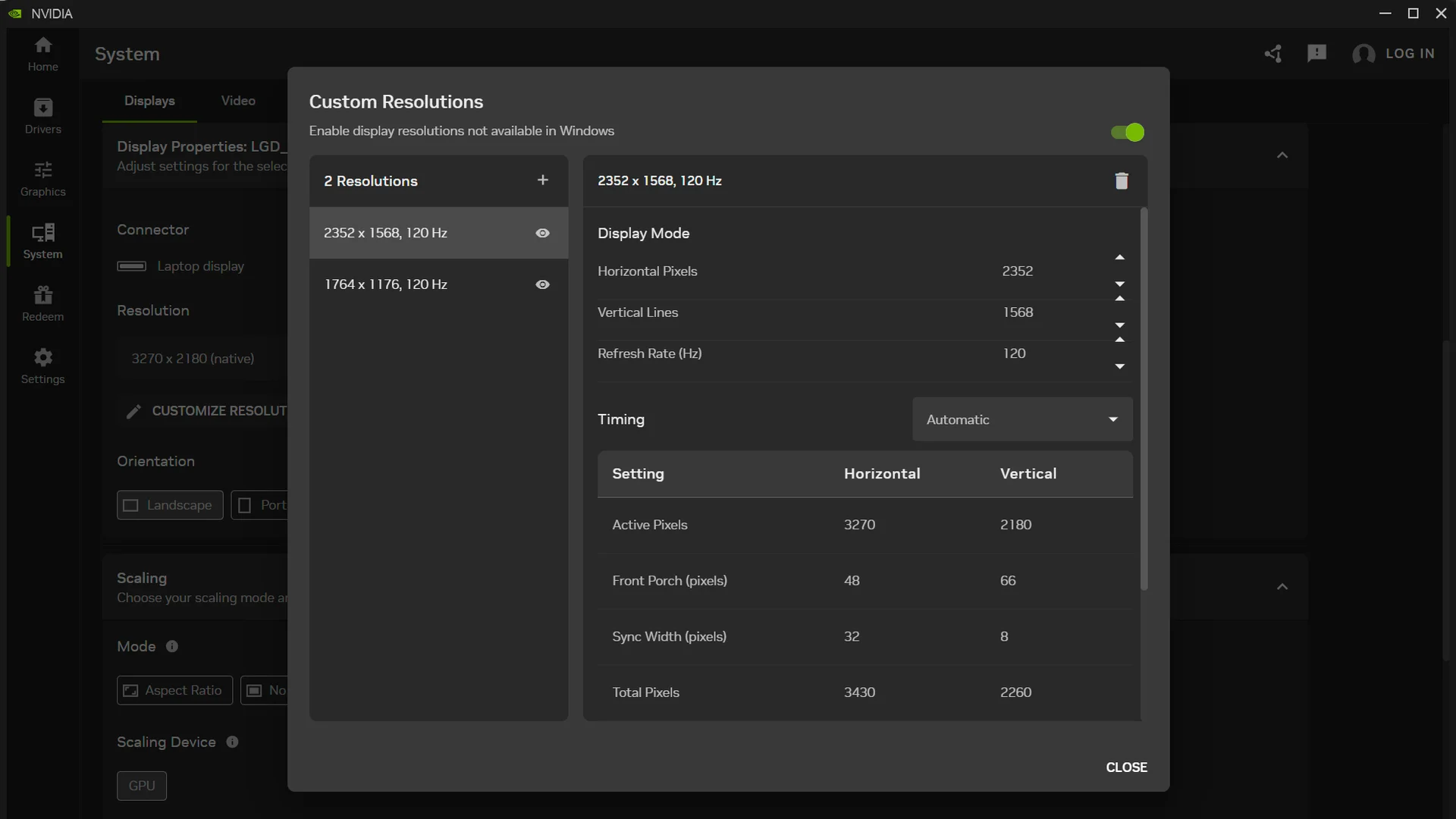
For a higher-resolution option, 2352x1568 matches the 3.7 million pixels of 2560x1440 while retaining the Surface’s 3:2 shape. The Nvidia App also offers scaling controls. Selecting “Aspect Ratio” can add black bars around 16:9 or 16:10 content instead of stretching it, though that leaves some of the screen unused.
Native resolution strains frame rate and responsiveness
The performance comparison used Control Resonant with the High raster preset, Medium ray tracing, DLSS, and 2X frame generation. This setup also uses DLSS Ray Reconstruction, which improves the appearance of ray-traced scenes.
At the Surface’s native 3270x2180 resolution, DLSS Ultra Performance and 2X frame generation produced a 63.5 FPS average. The 1% low was 38.1 FPS, and average input latency reached 87.9 milliseconds. The upscaler’s input resolution was just 1090x727, yet that still wasn’t enough to make the experience feel smooth and responsive. There’s little room to increase frame generation further without reducing image quality elsewhere.
Average FPS | 1% Low FPS | Average input latency (ms) | |
Surface Laptop Ultra - 3270x2180 | 63.5 | 38.1 | 87. 9 |
The custom mode changes the result. At 1764x1176 with DLSS Quality, which uses a 1176x874 input resolution, the Surface averaged 83.4 FPS, with 42.9 FPS 1% lows and 67.8 milliseconds of average input latency. That’s a much more convincing baseline, and 3X multi-frame generation pushed the average to 123 FPS while keeping average latency at 71 milliseconds. The 1% low reached 55 FPS.
A useful comparison with an older gaming laptop
To put those numbers in context, the Surface was compared with a 17-inch gaming laptop equipped with a Core i9-11980HK and an RTX 3080 Mobile with 16GB of memory. The older machine used Optiscaler to enable Intel Xe Frame Generation and Xe Low Latency, bringing its frame-generation setup closer to the Surface’s.
Average FPS | 1% Low FPS | Average input latency (ms) | |
Surface Laptop Ultra - 1764x1176 | 83.4 | 42.9 | 67.8 |
RTX 3080 Mobile + 11900HK - 1920x1080 | 87.1 | 53 | 69 |
At 1920x1080, the RTX 3080 system averaged 87.1 FPS, with 53 FPS 1% lows and 69 milliseconds of average input latency. Its lows were stronger, but the Surface came close on average frame rate and latency, despite its smaller, lighter design. The older laptop’s processor is listed as a Core i9-11980HK in the test setup, while the table labels it as a 11900HK.
Power and portability widen the gap. The RTX 3080 laptop drew 250 watts from the wall during testing. The Surface consumed between 110 and 120 watts under load, measured through USB-C. The older laptop and its large power adapter together weighed more than 9 pounds (4.1 kilograms); the Surface and its 140-watt adapter came to 5.3 pounds (2.39 kilograms).
The Surface still isn’t light, but it’s easier to carry and can fit on a tray table or a lap. Its battery also lasted through a transcontinental U.S. flight, with charge remaining for use at either end of the trip.
The practical takeaway
In Control Resonant, the Surface Laptop Ultra can deliver a gaming experience close to an older, high-end RTX 3080 Mobile system while using less than half the power and weighing several pounds less with its adapter. The custom 1764x1176 mode is what makes that comparison work: it retains the panel’s proportions, sharpens the image compared with Microsoft’s lower-resolution option, and cuts the cost of rendering each frame.
That result won’t guarantee the same gains in every game, and the RTX 3080 laptop still leads on 1% lows in this test. But Surface owners who find native-resolution gaming sluggish have a straightforward setting to try. A well-chosen intermediate resolution may be the difference between a demanding display and a laptop that can put its high refresh rate to use.